Steam Offline Denuvo Tutorial
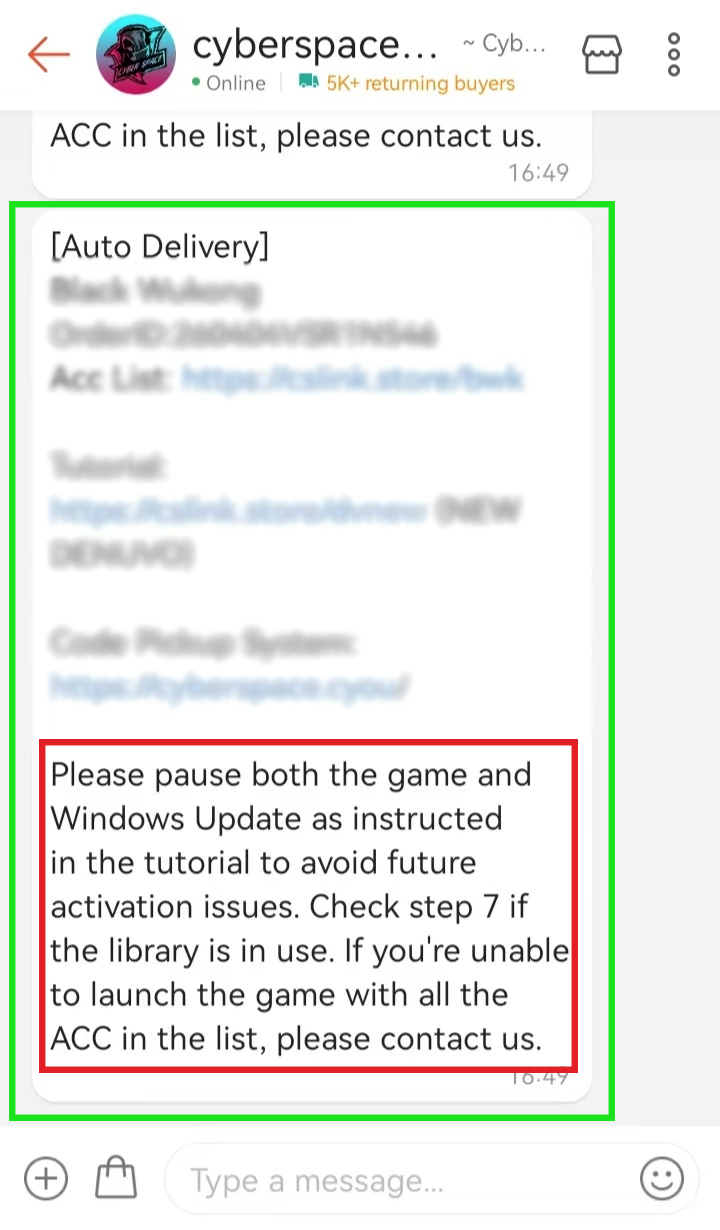
Check the notes at the bottom of the auto-delivery msg.
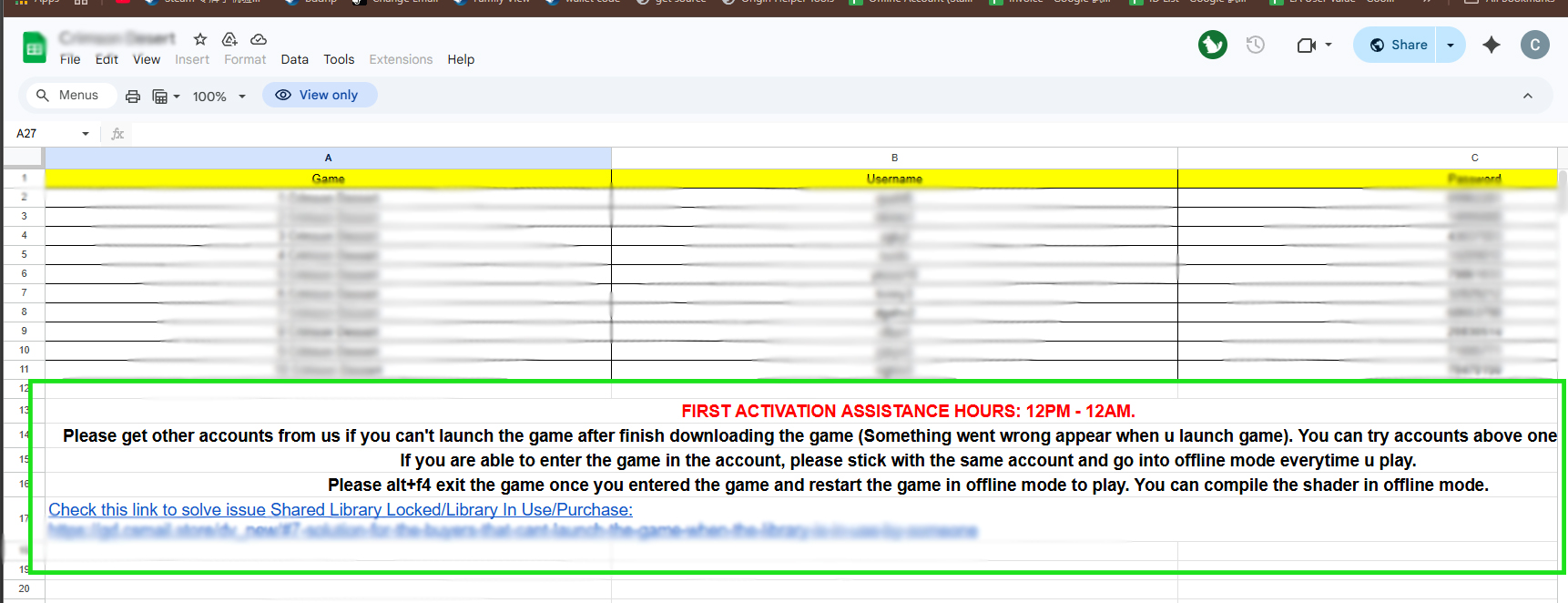
Check the notes at the bottom of the account list.
Setup:
0. Disable Windows Auto Update (Optional but Recommend)
Method 1: Pause Windows Update Manually
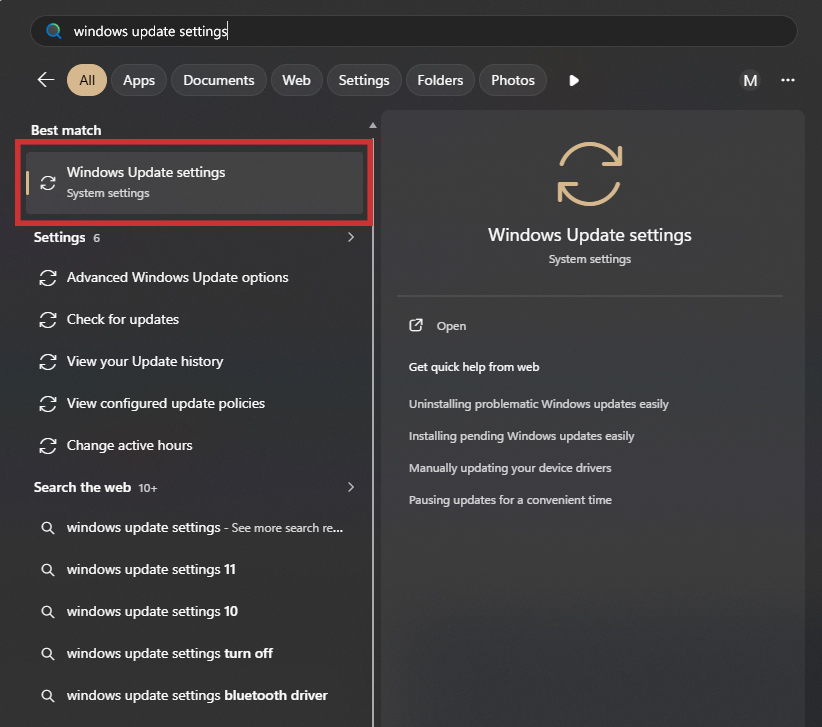 Search and open Windows Update Settings.
➜
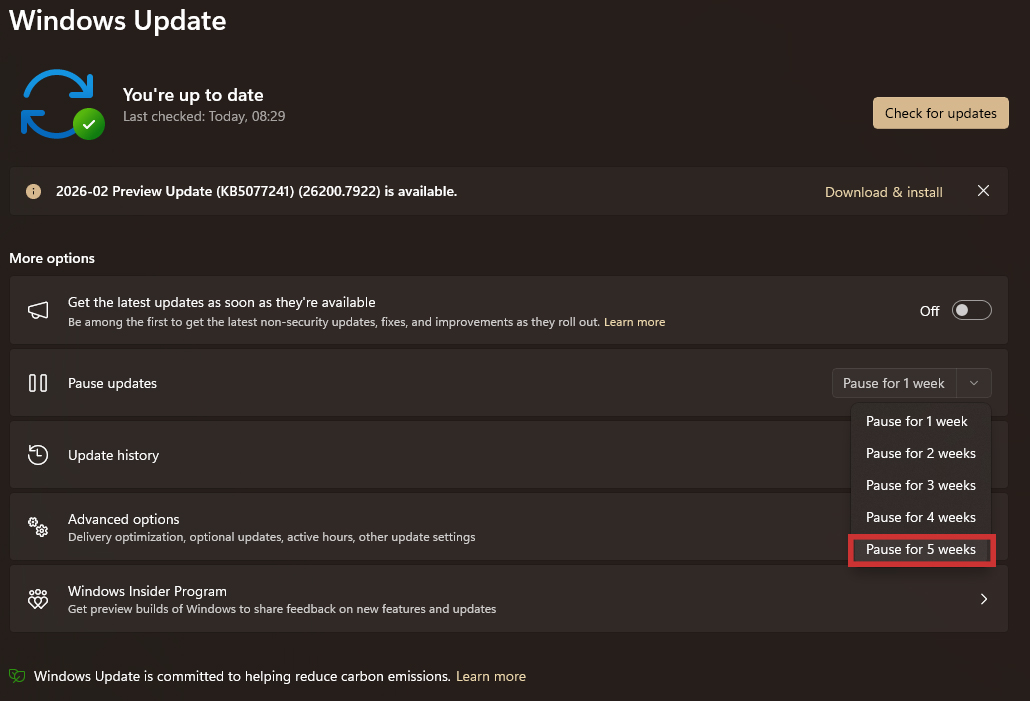 Pause for 5 weeks. (Based on your preference)
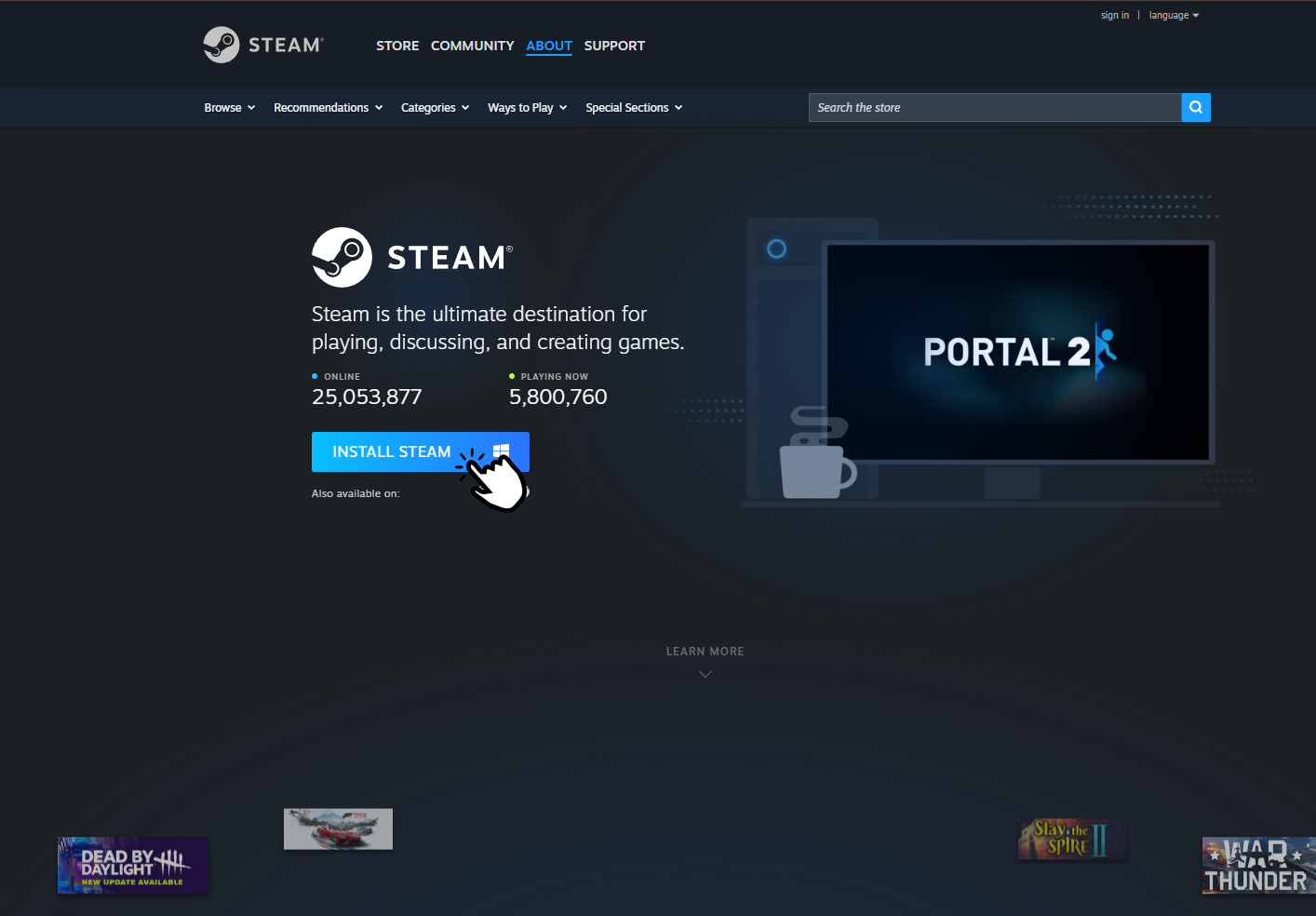
1. Download and Install Steam
Download and Install Steam
2. Login
Login
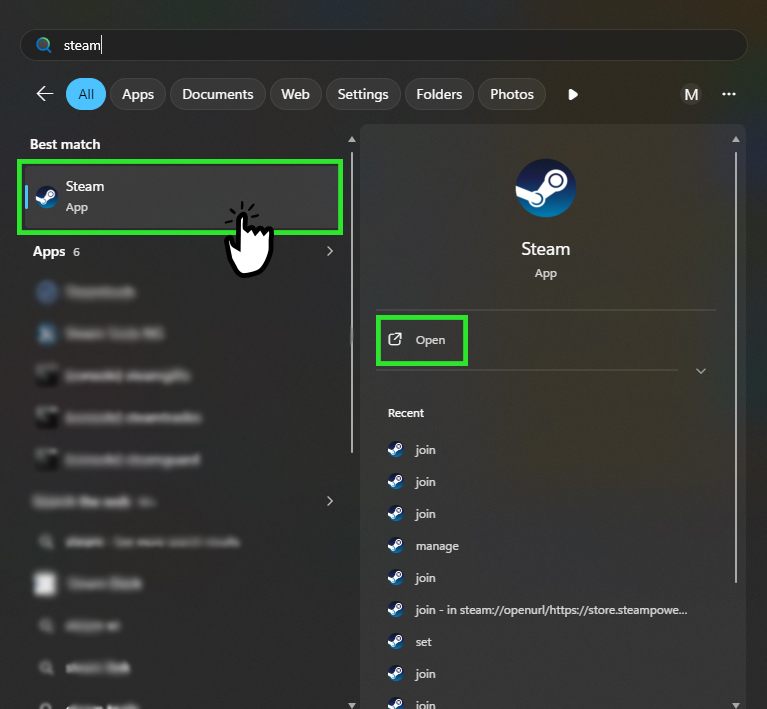
Open Steam.
➜
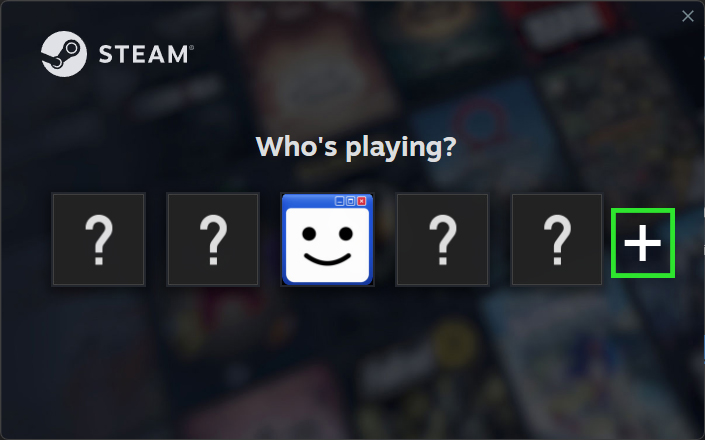
Click "+" button (Skip this step if Steam appear the next step interface).
➜
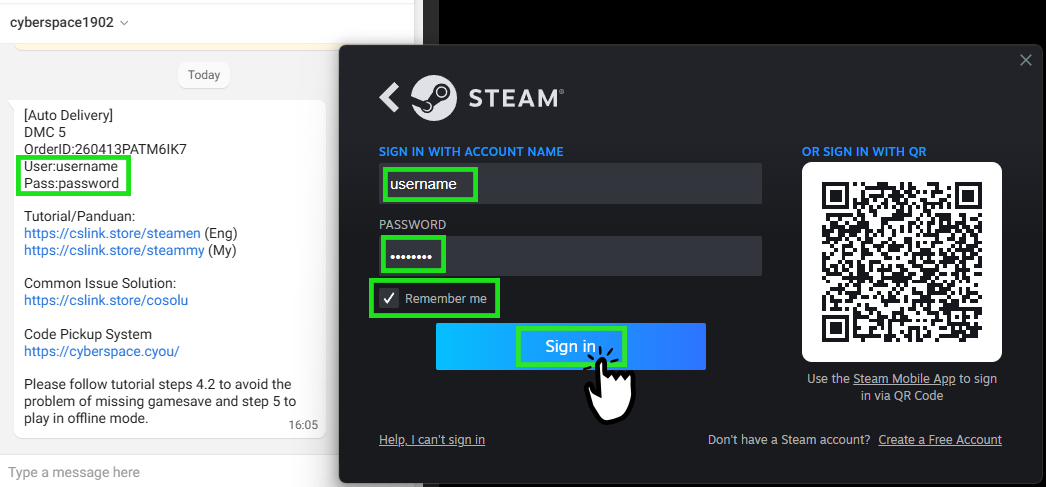
Login Steam with the account we provided.
➜
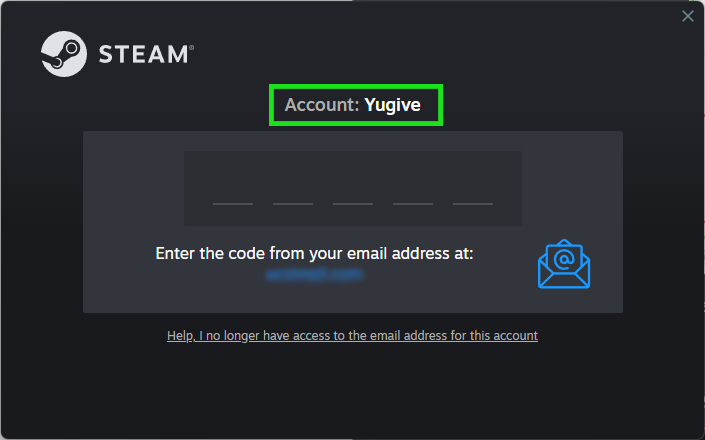
Check which username are you logging in.
➜
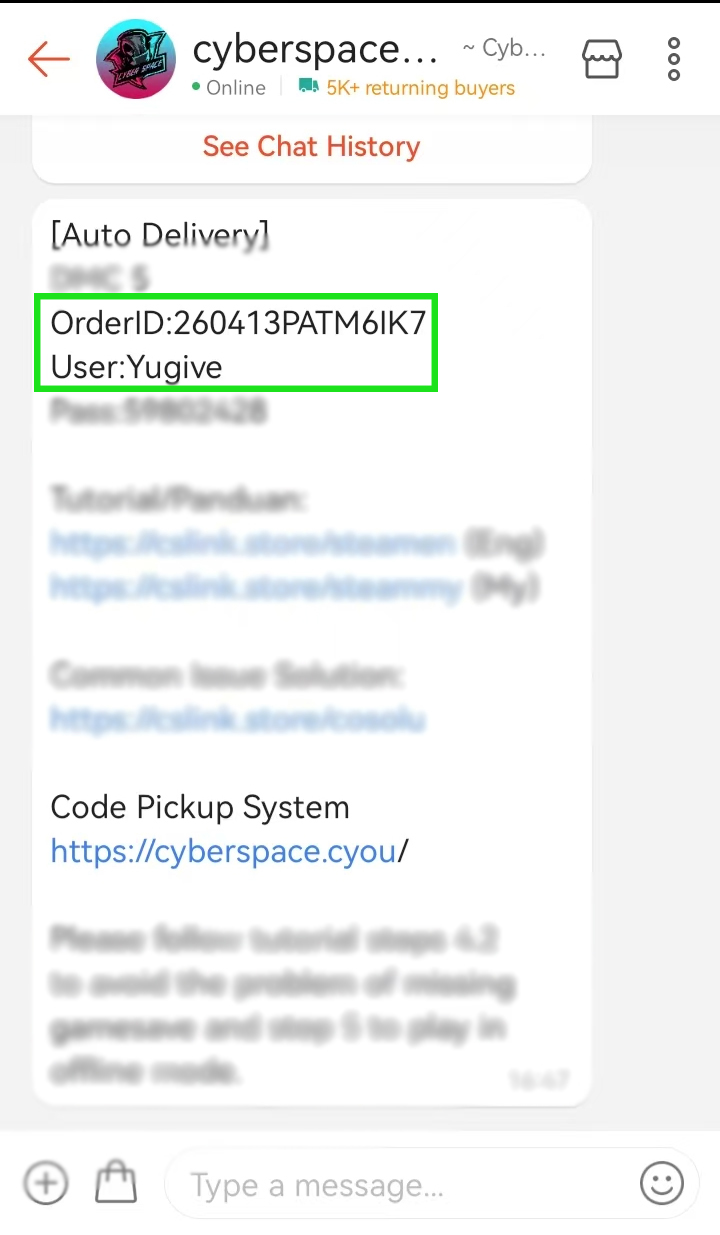
Get the Shopee Order ID and check if the username matches with it.
➜
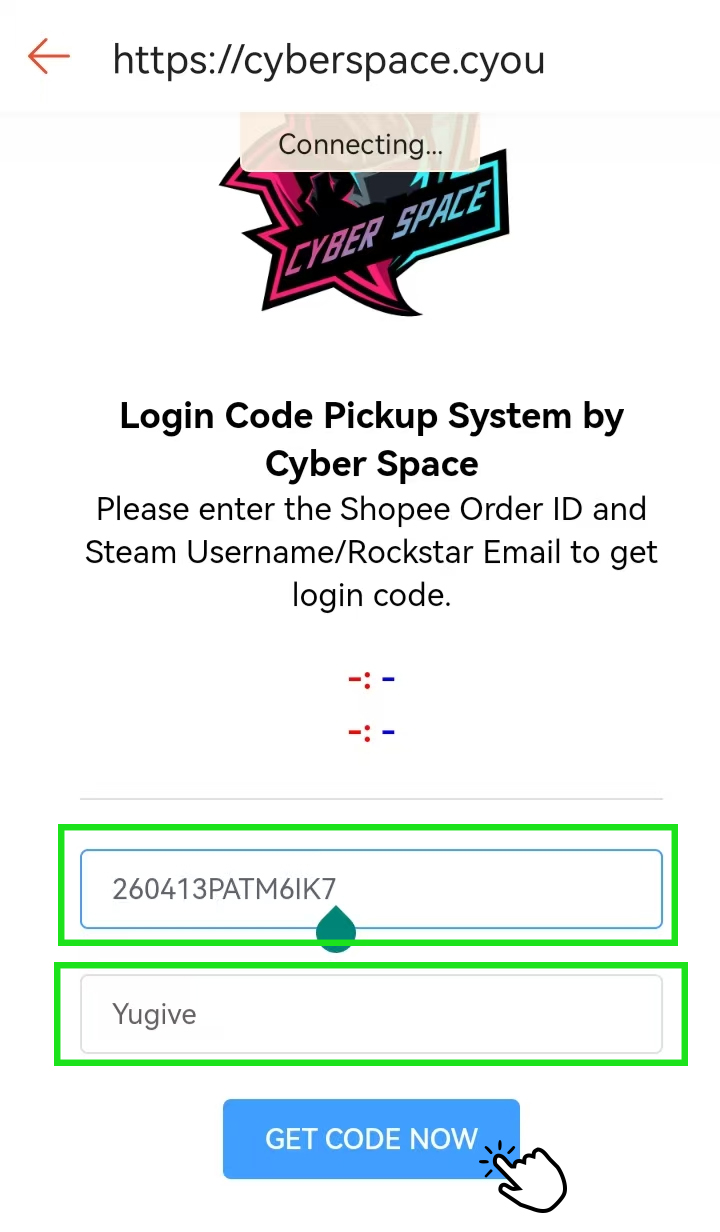
Enter the Order ID and the username you used to login into the form of the website then click "GET CODE NOW".
➜
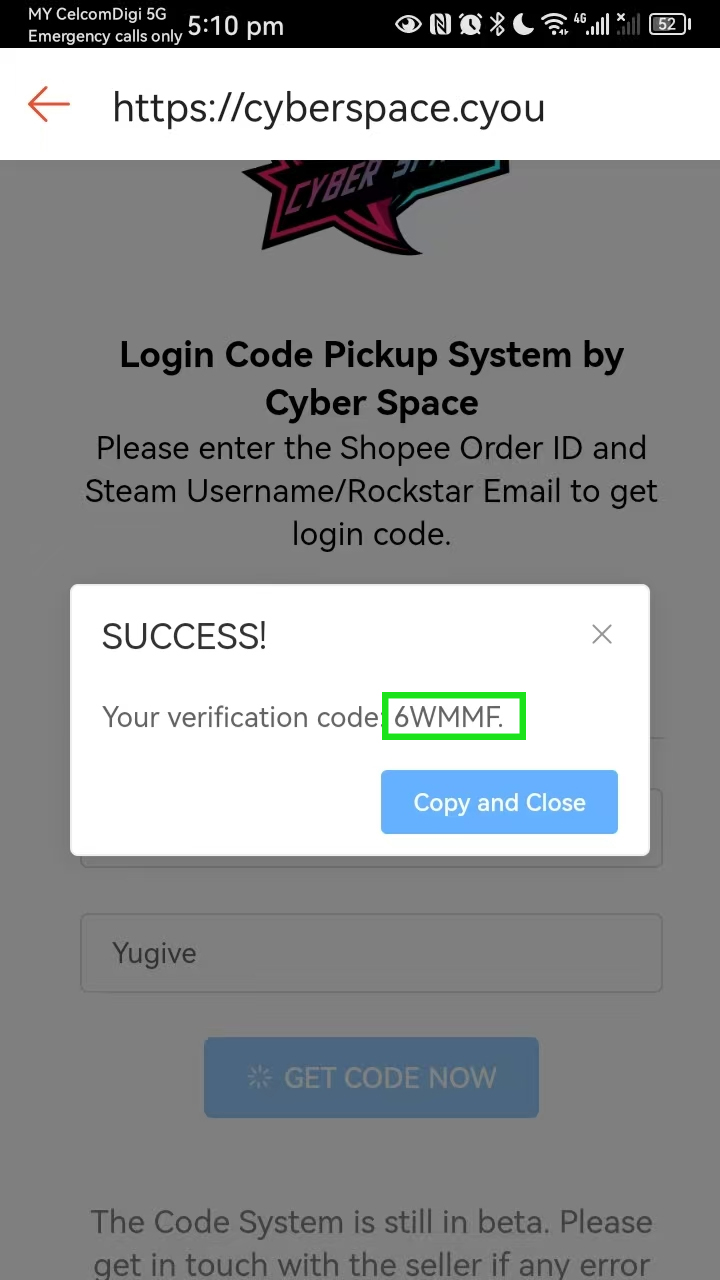
Once you get the code, enter it into the Steam login interface.
➜
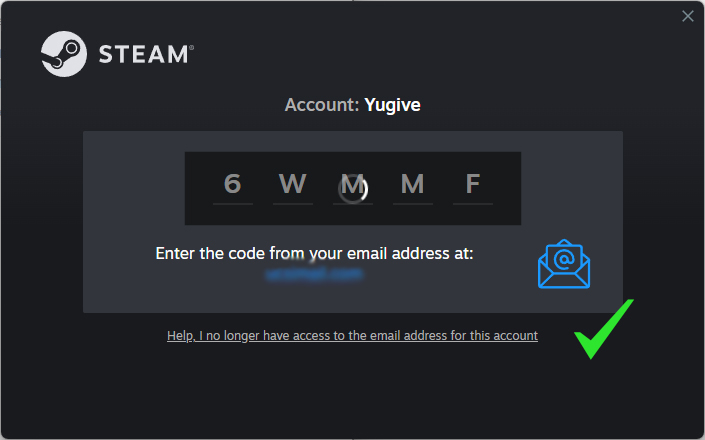
✅Done!
3. Install the Game
Install the Game
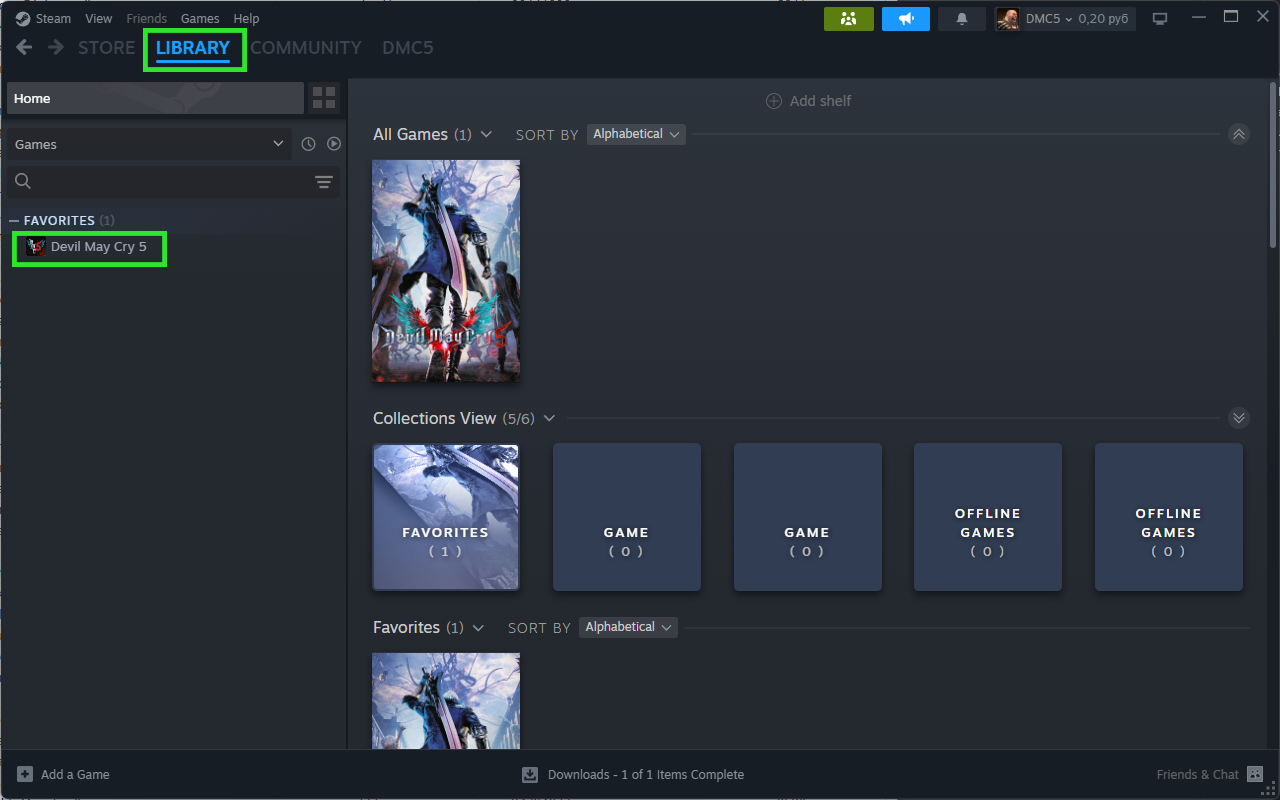
After you have logged in, go into Library and click on the game you want to download and install.
➜
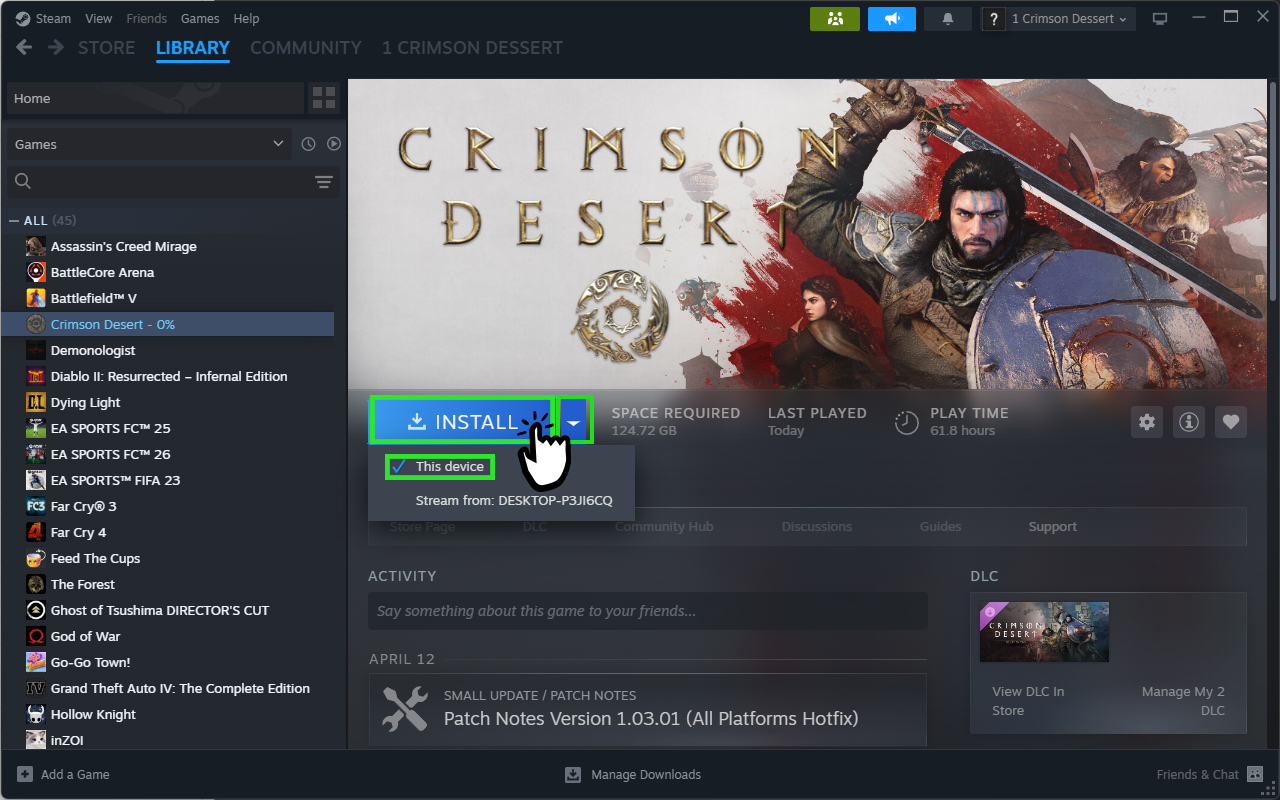
Click on Install. (Click the arrow on the right and select “This device” if the button displays “Stream” or “Connect”).
➜
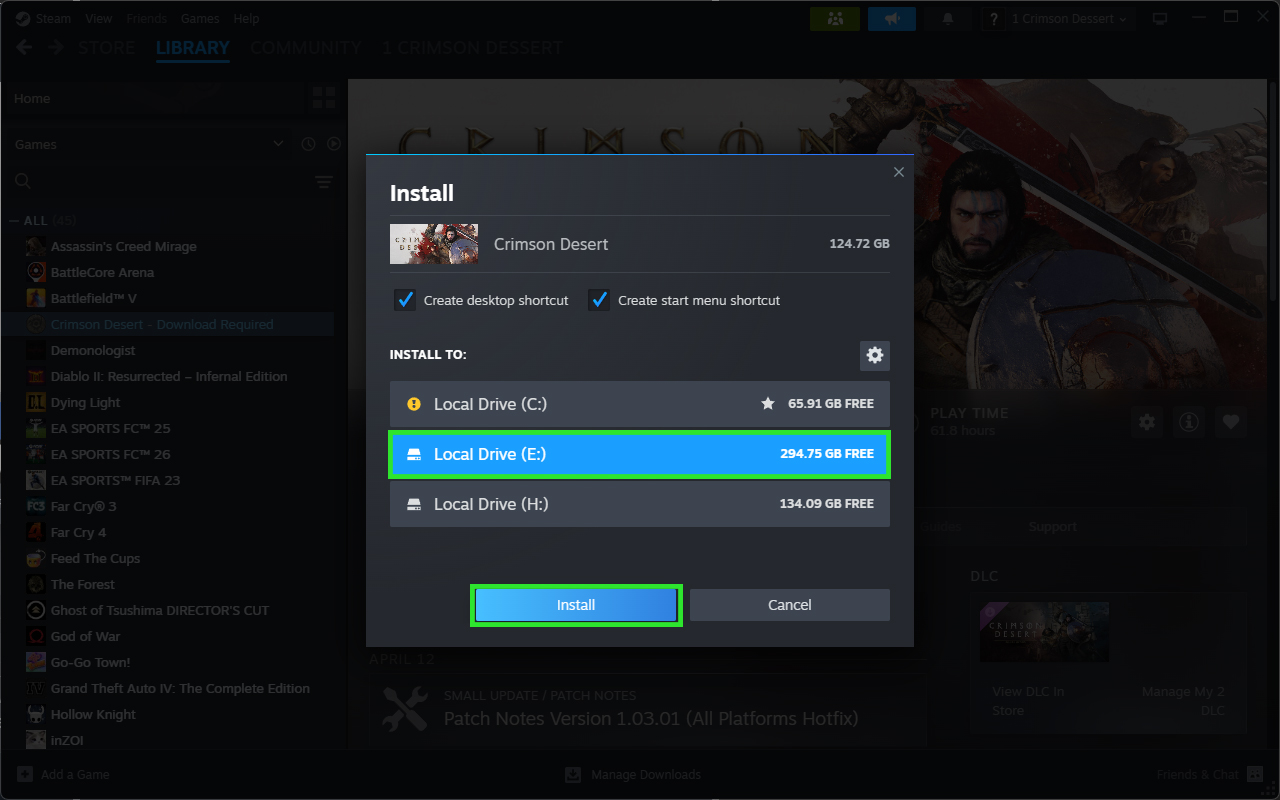
Choose your installation disk and click 'Install'.
➜
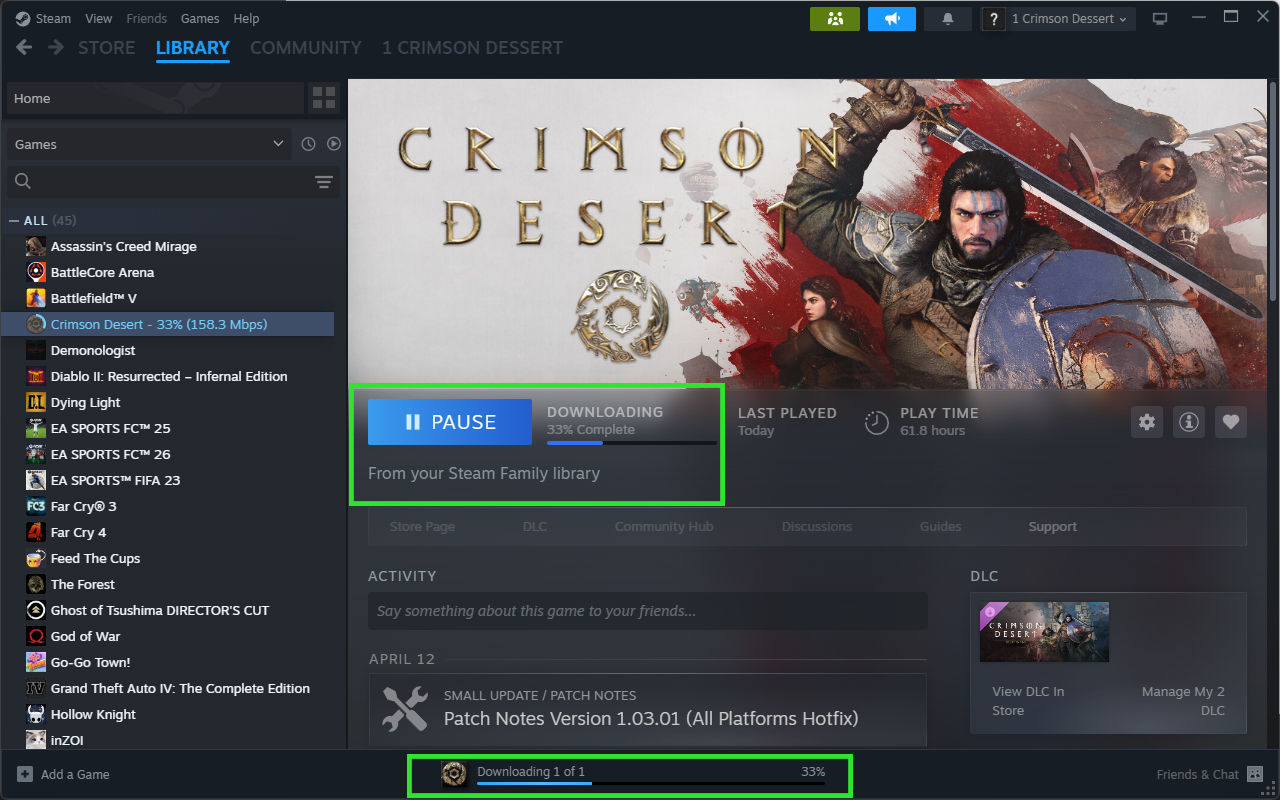
✅Done! The game is downloading right now. You can head straight to step 4 while the game is downloading.
4. Option to Disable 1: Disable Steam Cloud Option (Check everytime when you play the game)
Disable Steam Cloud Option
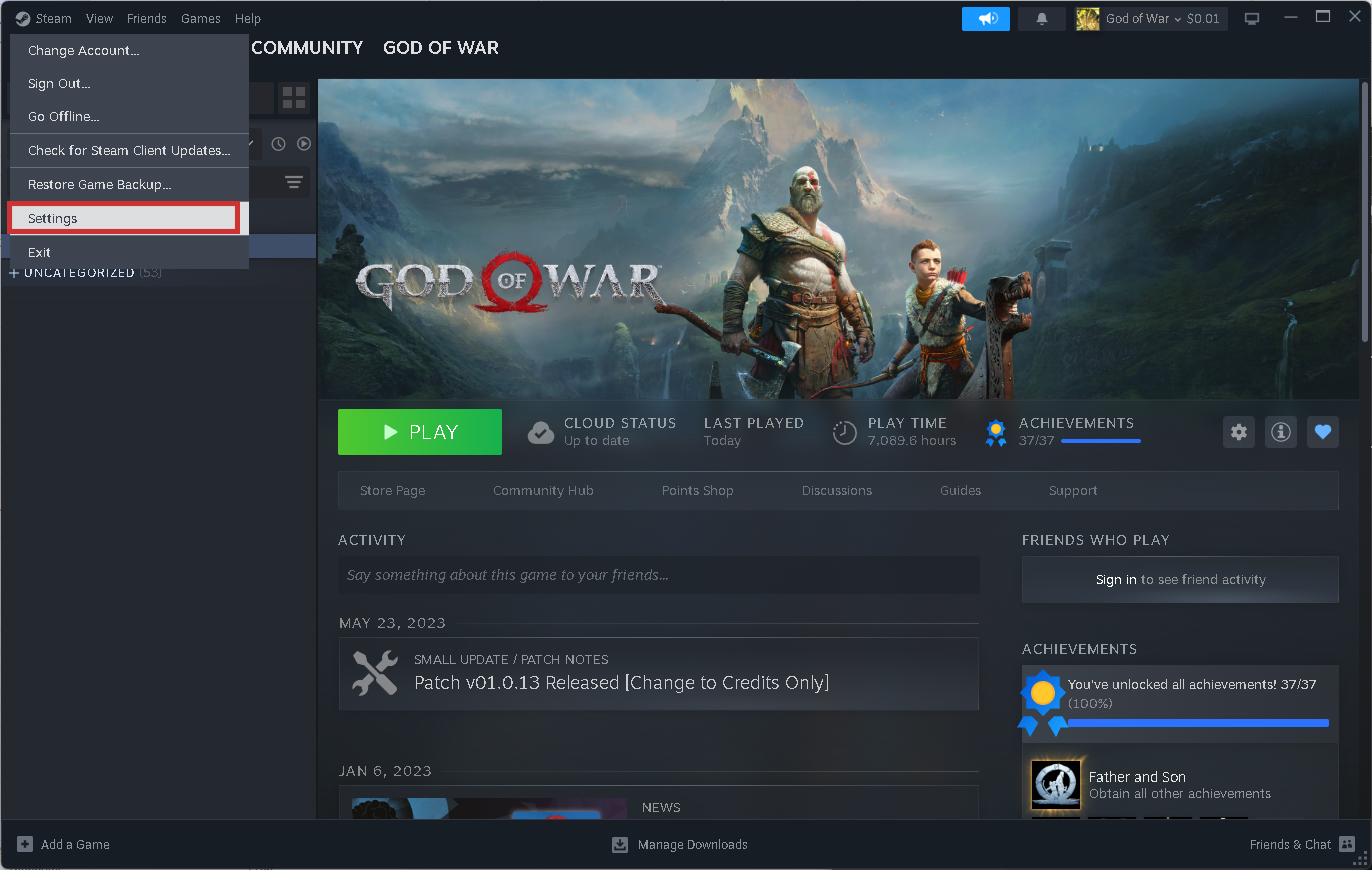
Open Setting on Steam.
➜
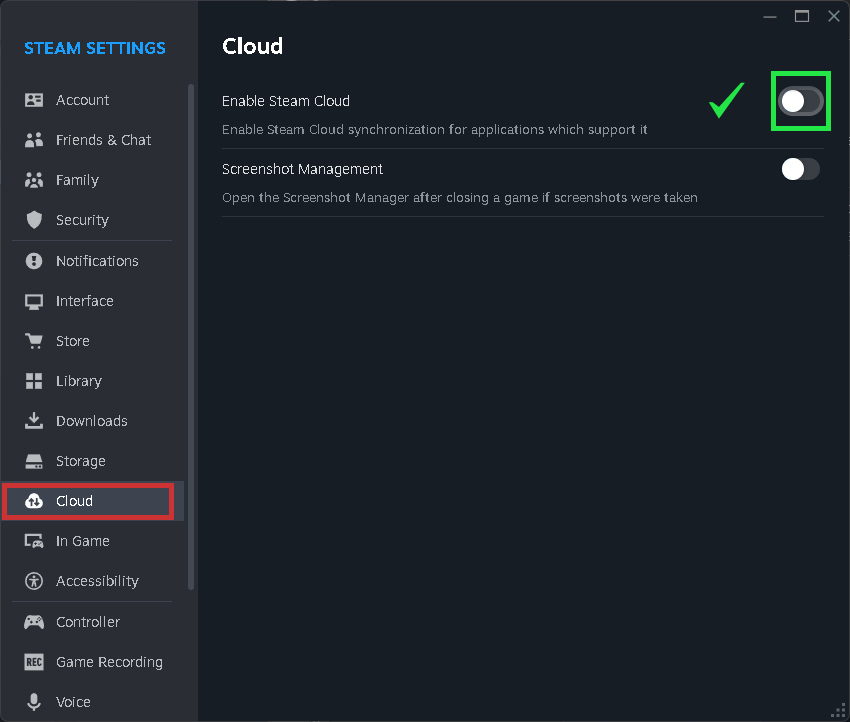
Disable "Enable Steam Cloud" option in Cloud section.
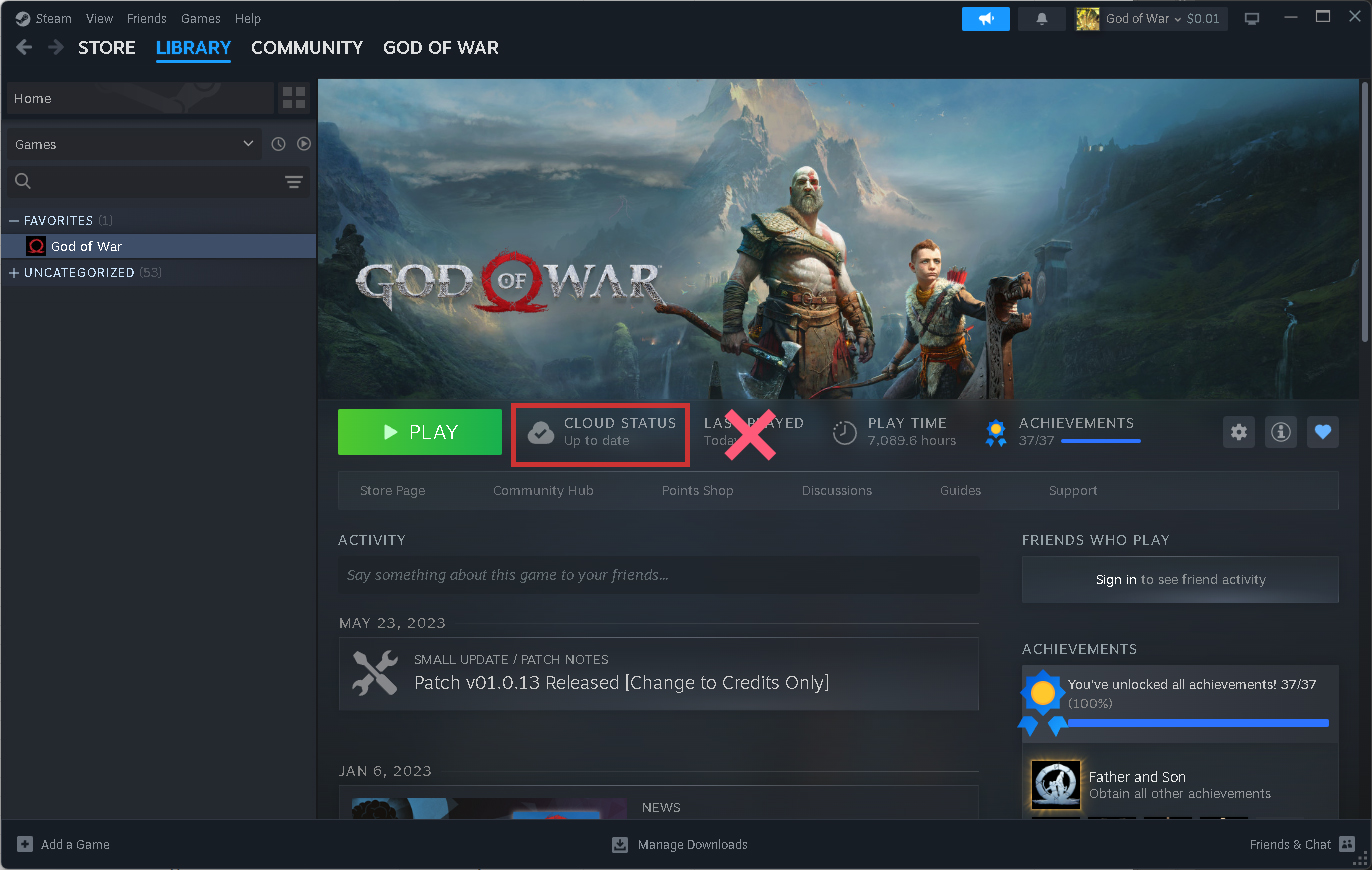
❌ Cloud Status is still exist.
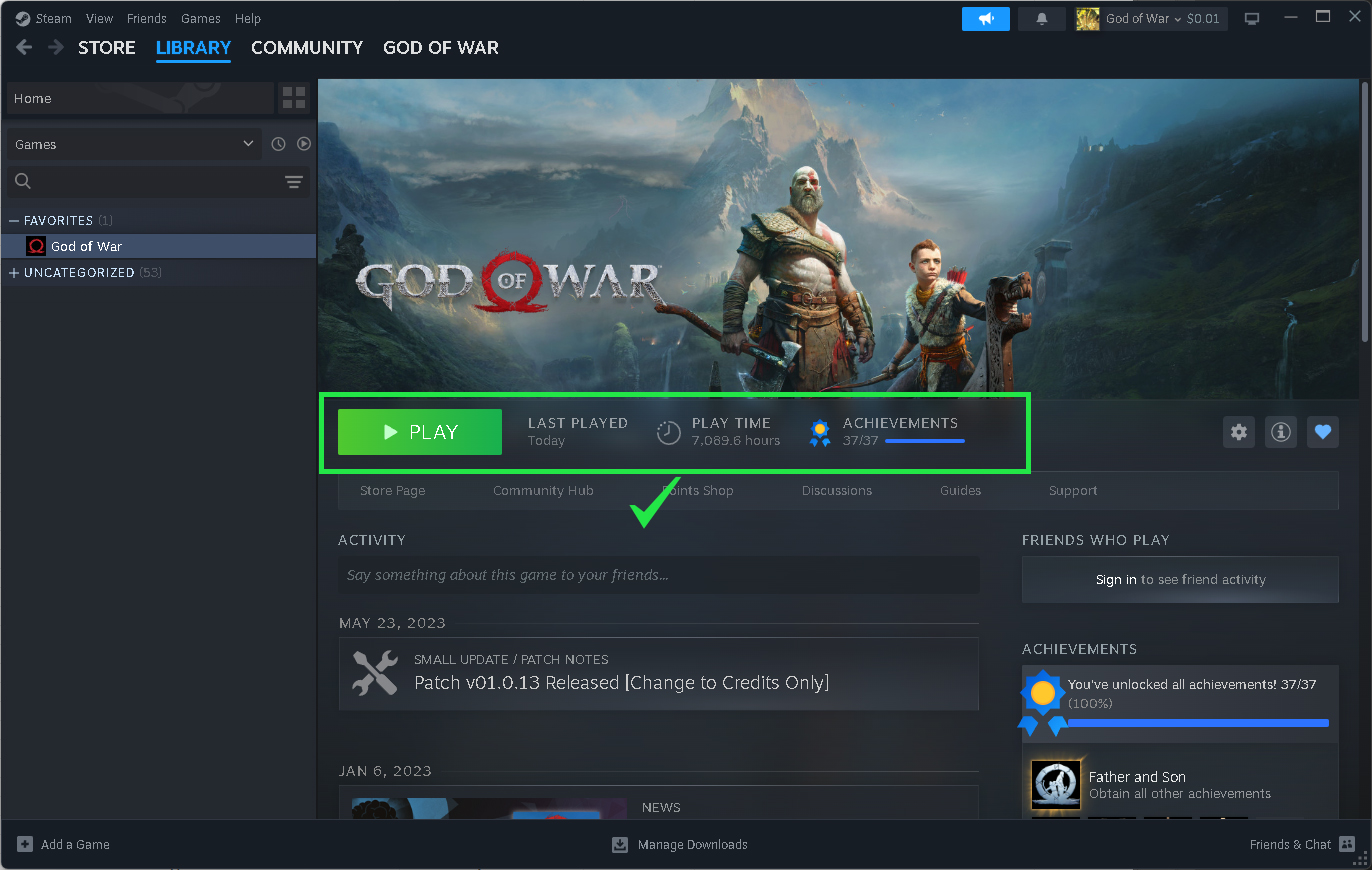
✅ Cloud Status disappeared.
Important Note
Please check that the cloud status has disappeared everytime before playing the game to avoid losing your game progress.
4. Option to Disable 2: Disable Game Auto Update (Optional but Recommend)
Prevent Steam Update the Game Automatically
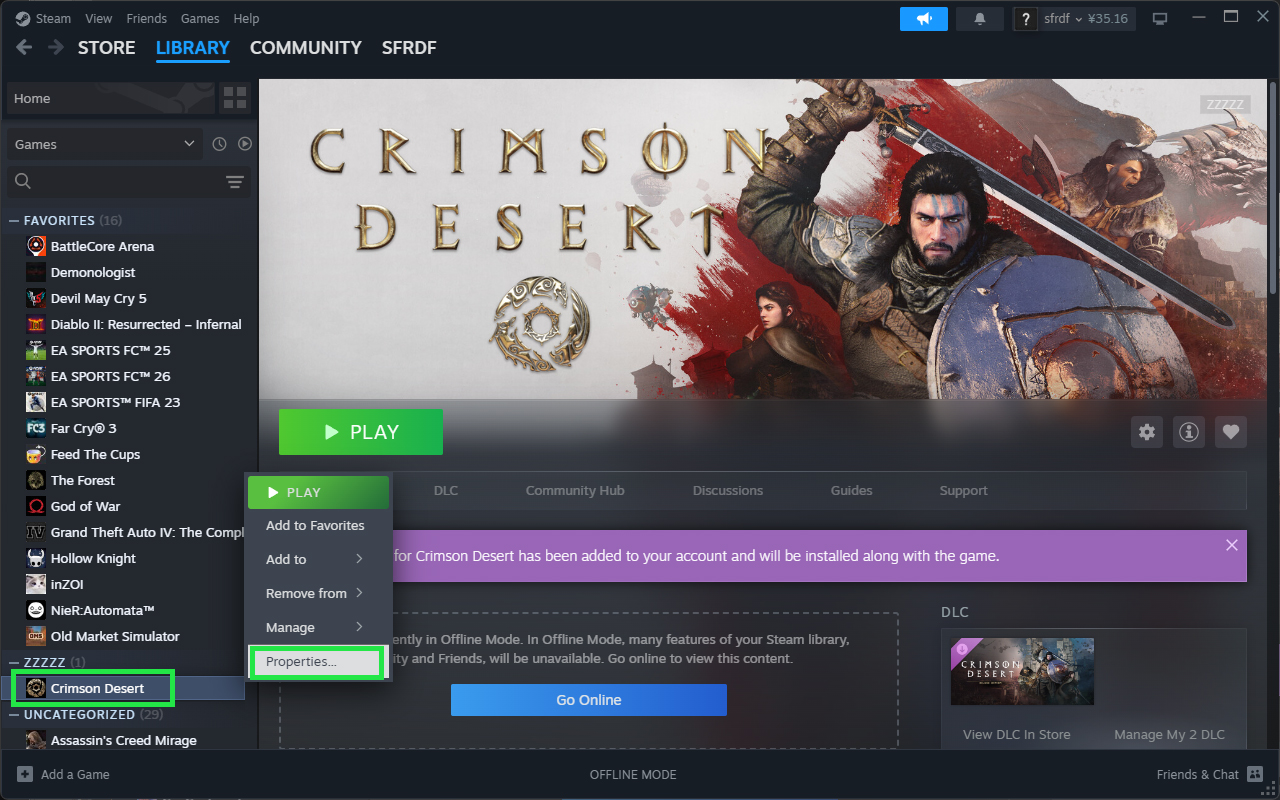
Right Click on the game on Steam Library - Click "Properties".
➜
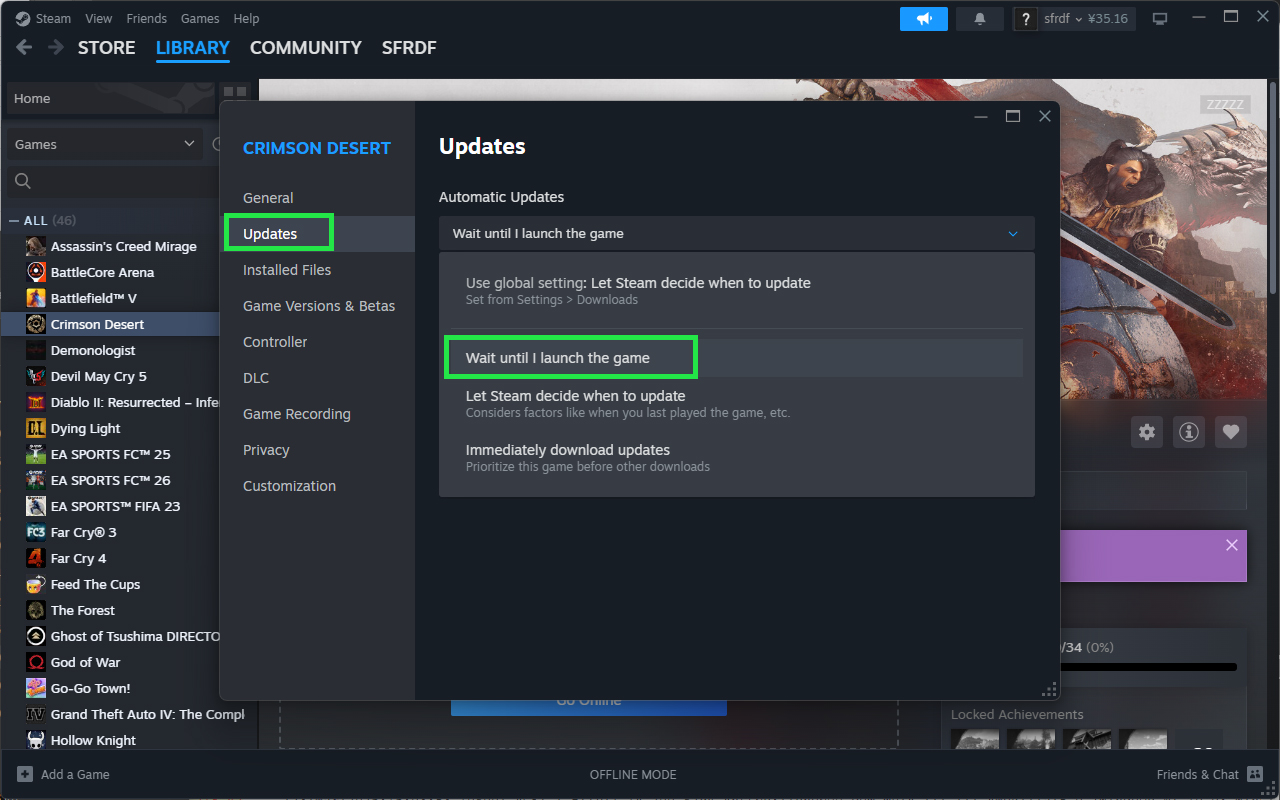
Click on "Updates" Tab. Then Set "Automatic Updates" option to "Wait until I launch the game".
➜
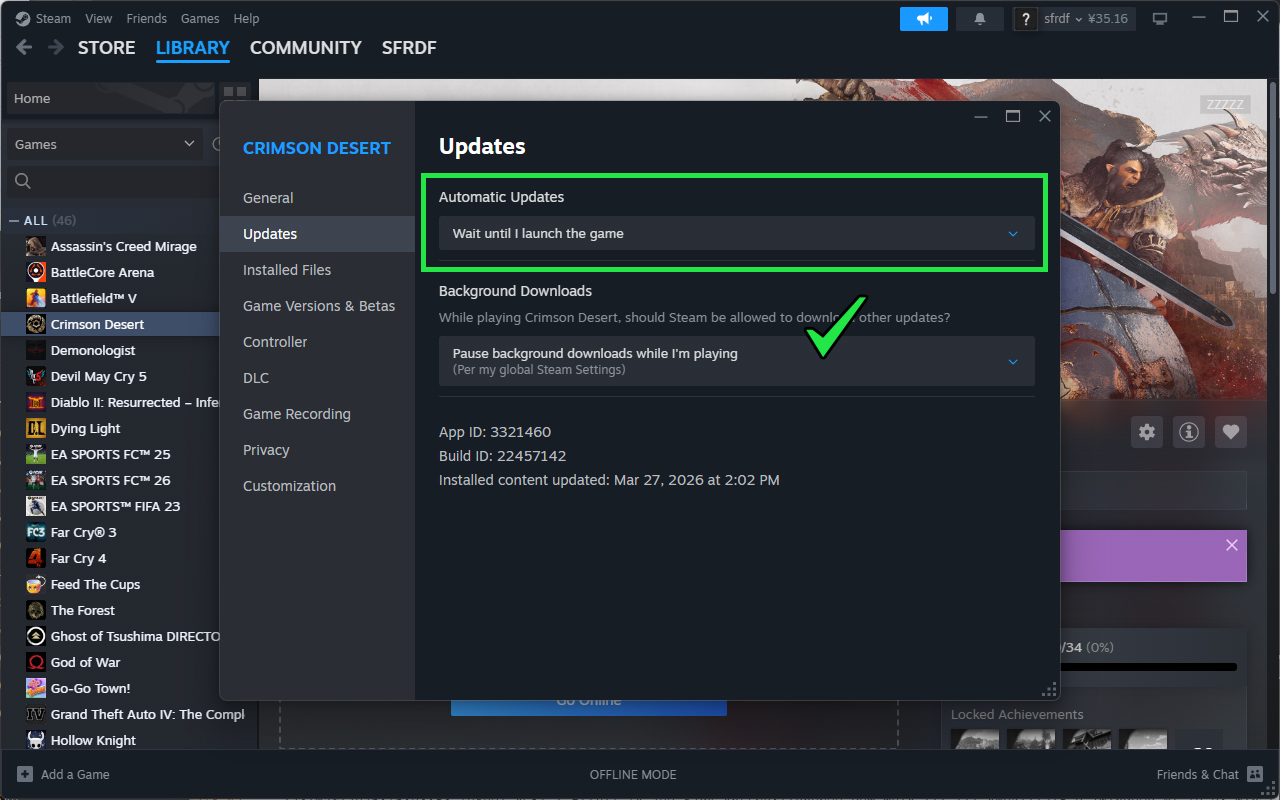
✅Done! The result should look like this.
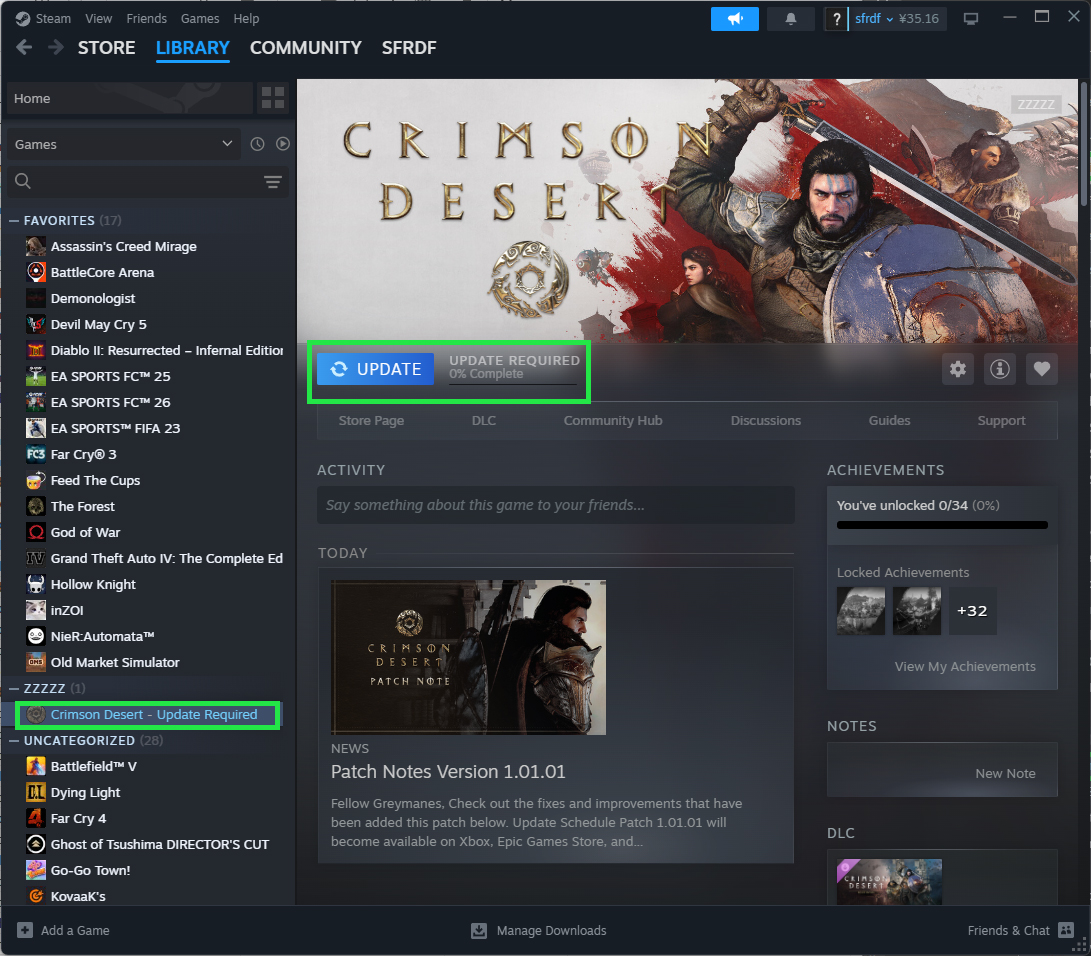
Future Action: What to do when Steam asks for an update
➜
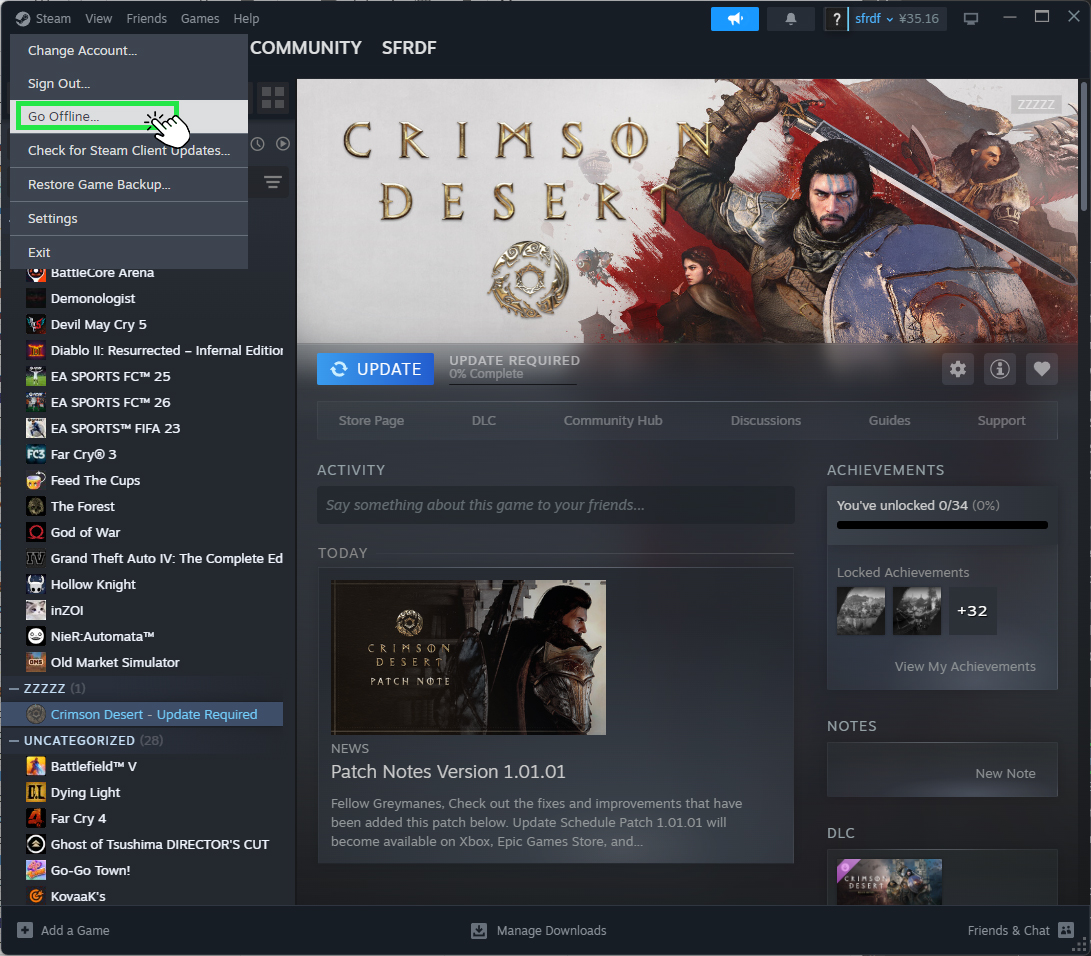
Click "Steam" at top-left corner then click "Go Offline...".
➜
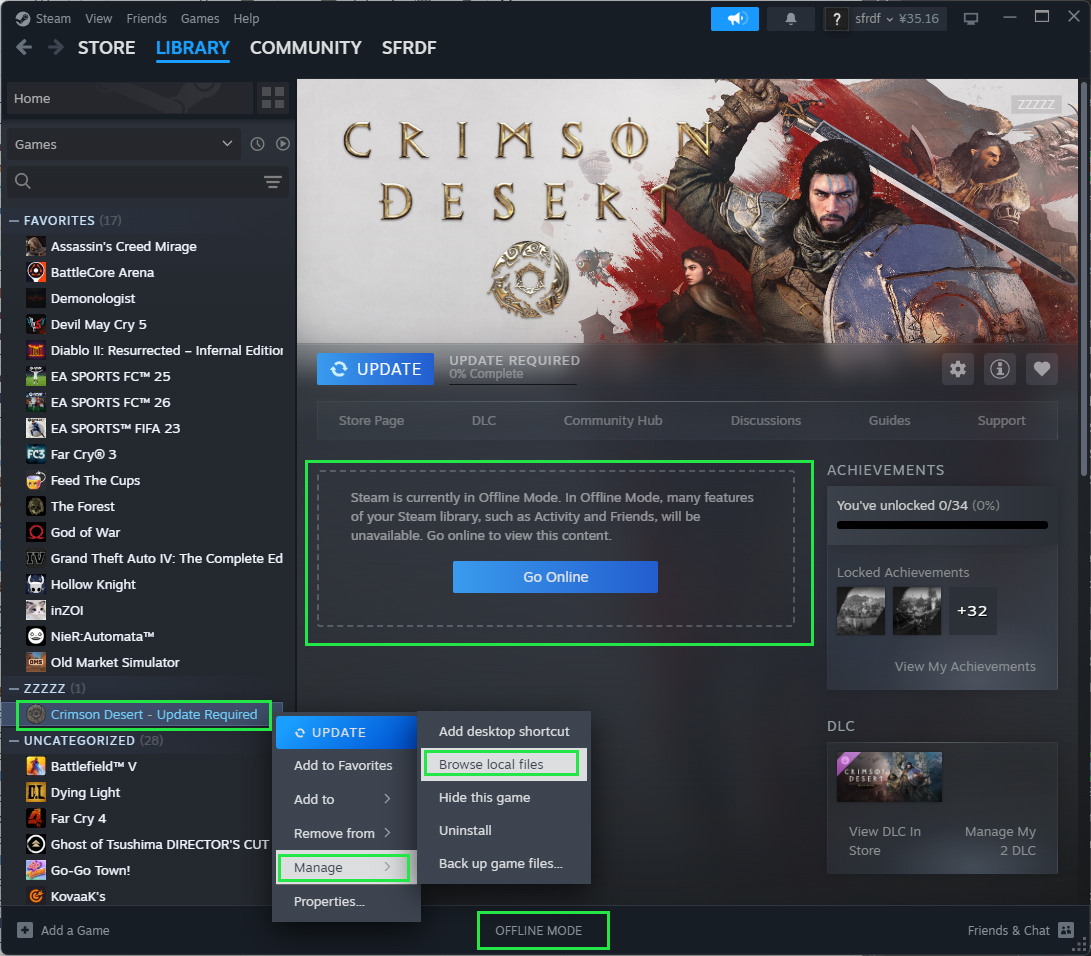
Right Click on the game, then click Manage - Browse local files.
➜
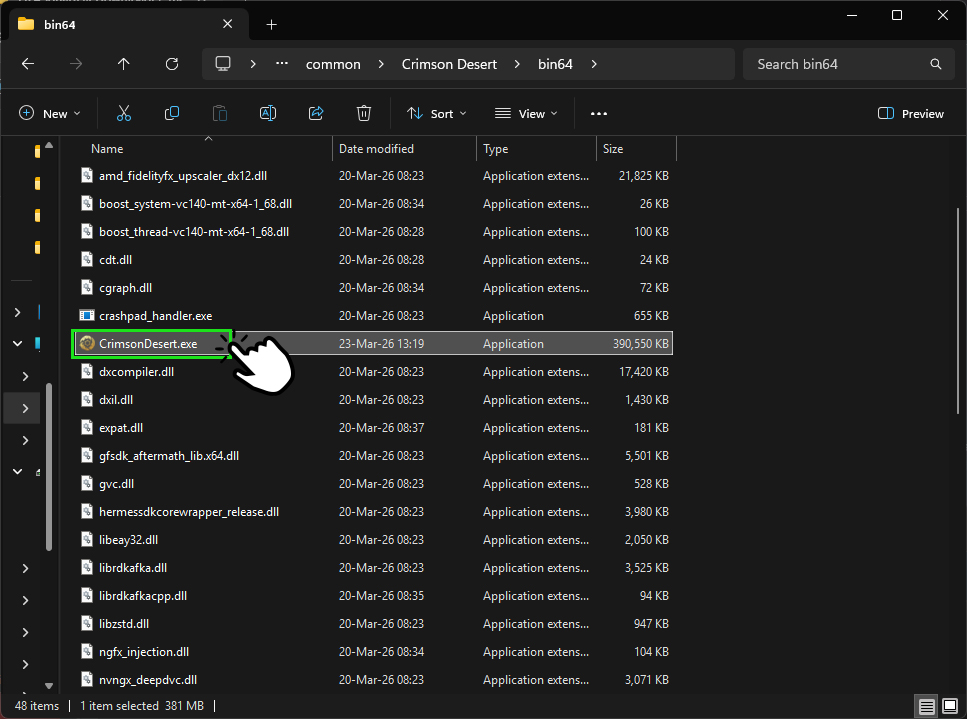
Browse to the game main executable file then launch it.
➜
Done!
5. Activate the game (Do only when you finish all the steps above)
Activate the game (Do only when you finish all the steps above)
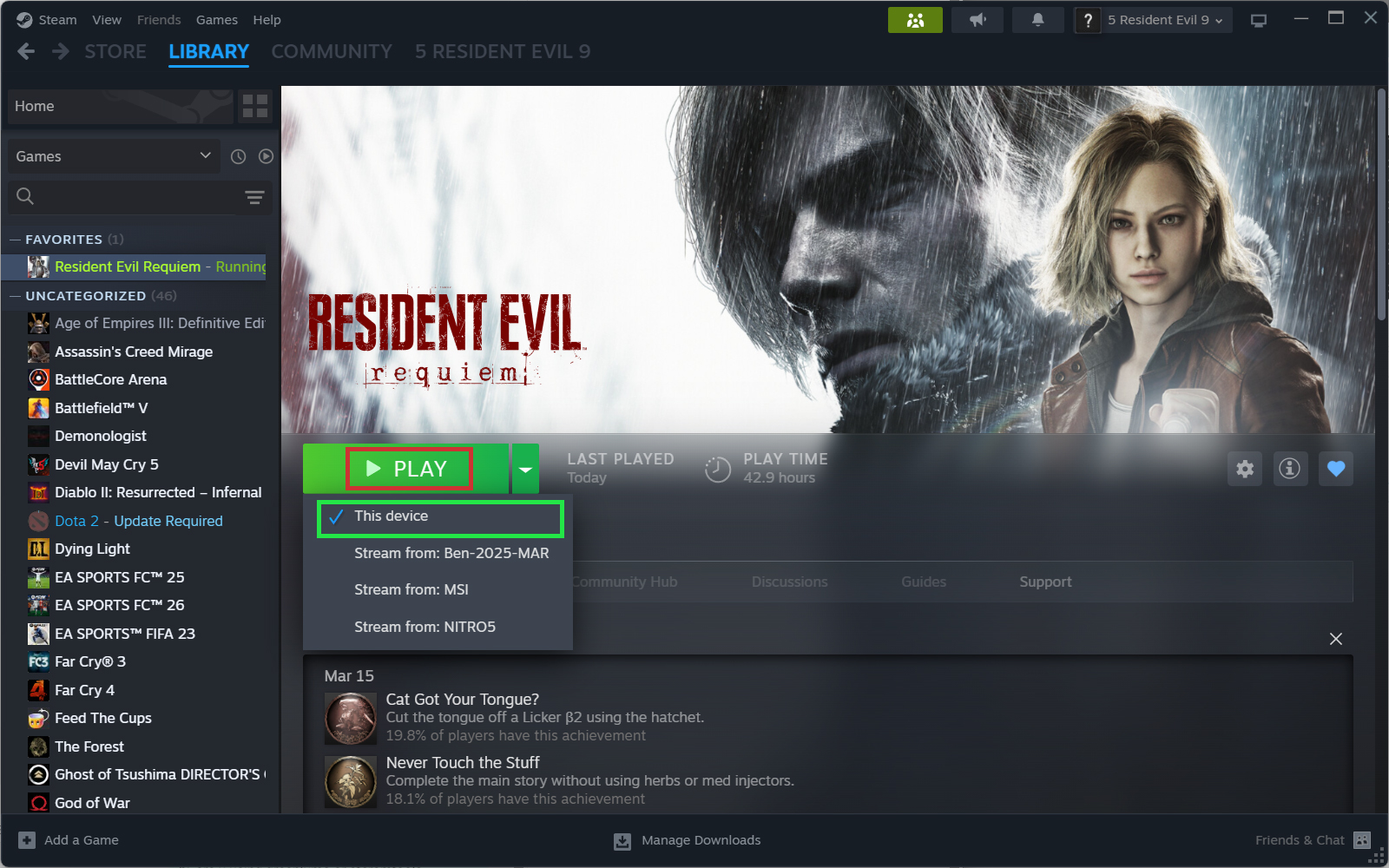
Once you finish download and setup the game, click "Play". Make sure you have clicked the arrow right on the button and choose "This device".
➜
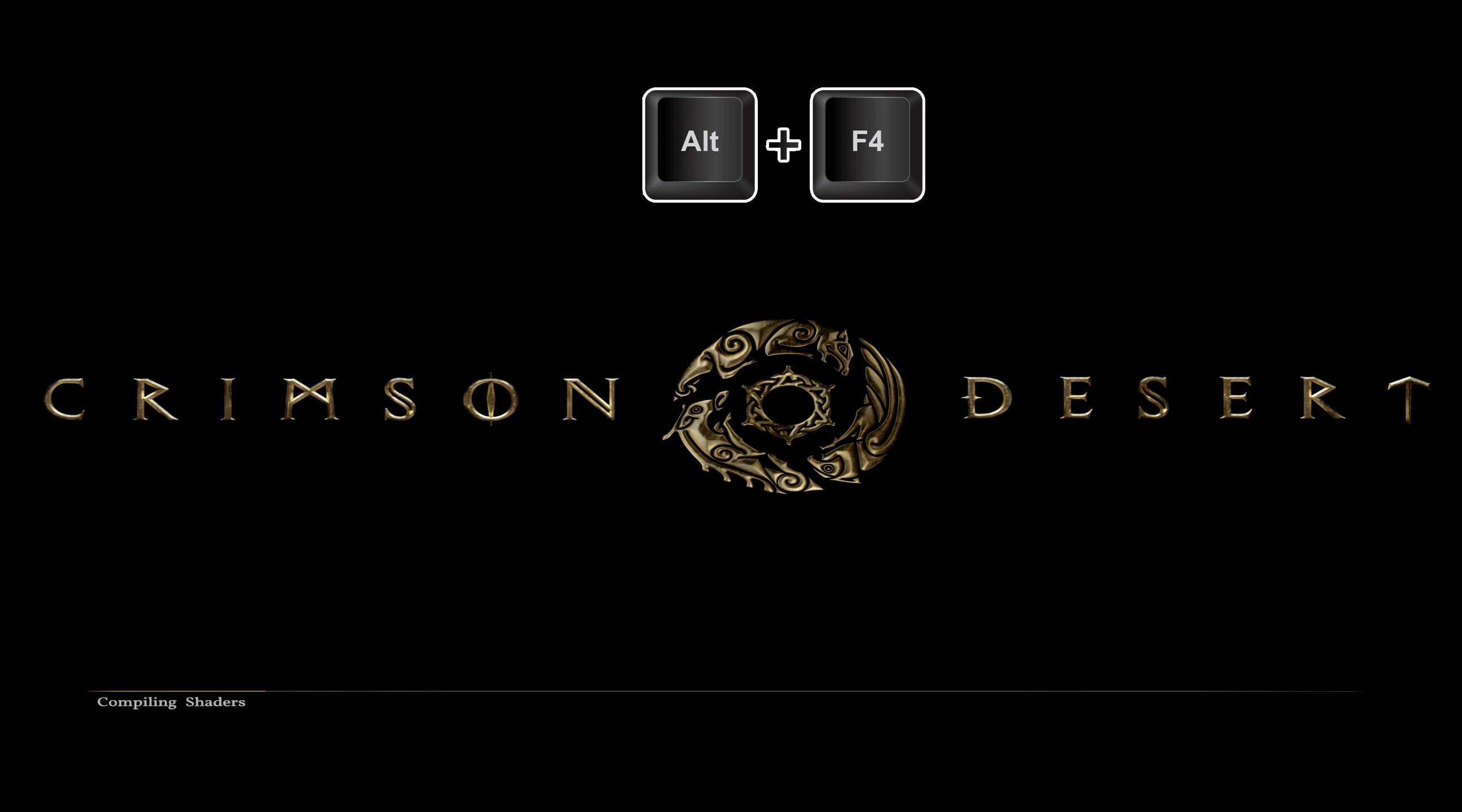
✅Done! Exit the game by alt + f4 and you can direct to play it in offline mode in the future by following next steps.
6. Play in Offline Mode (Check everytime when you play the game)
Play in Offline Mode (Check everytime when you play the game)
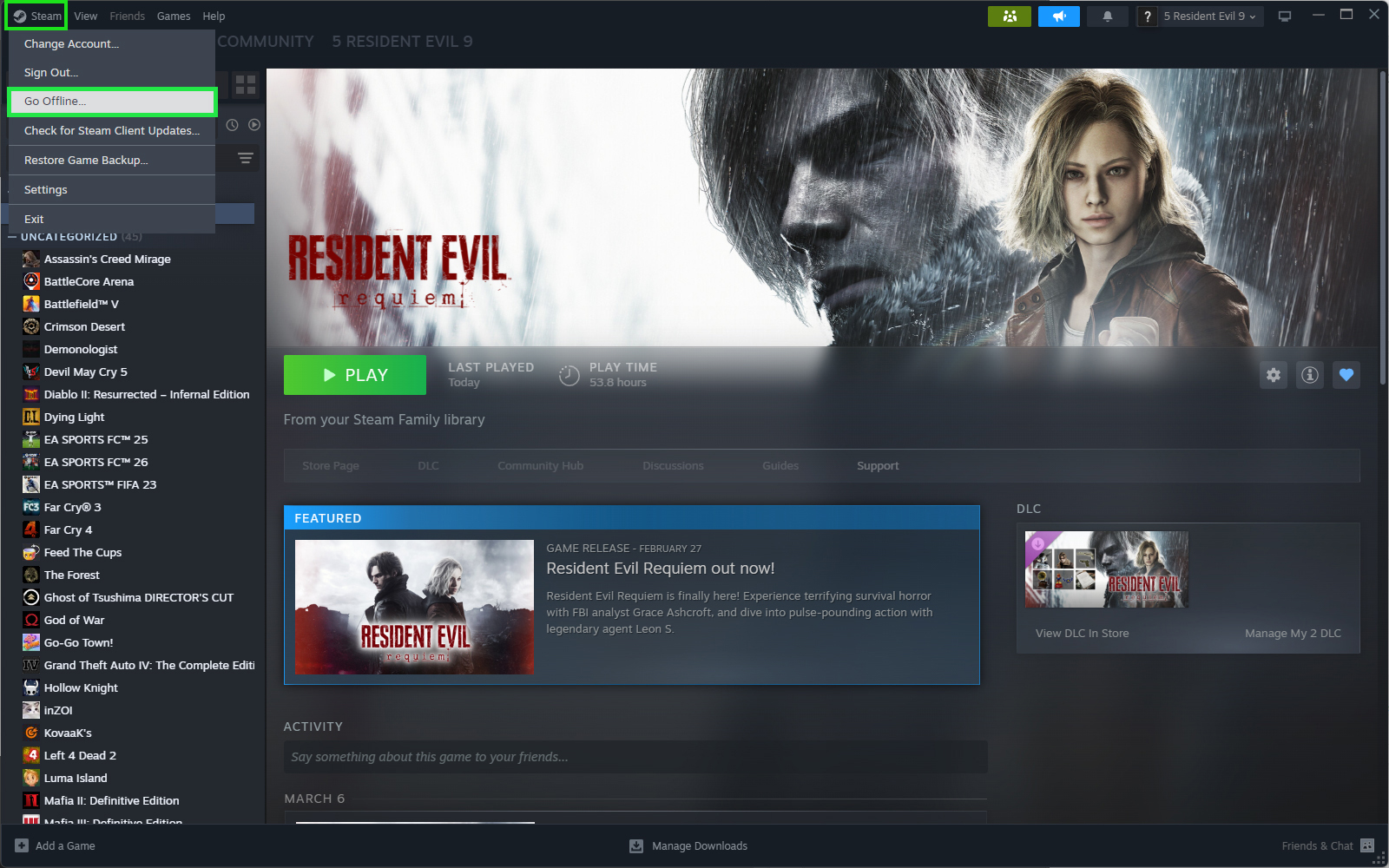
Your activation is done! Go into offline mode.
➜
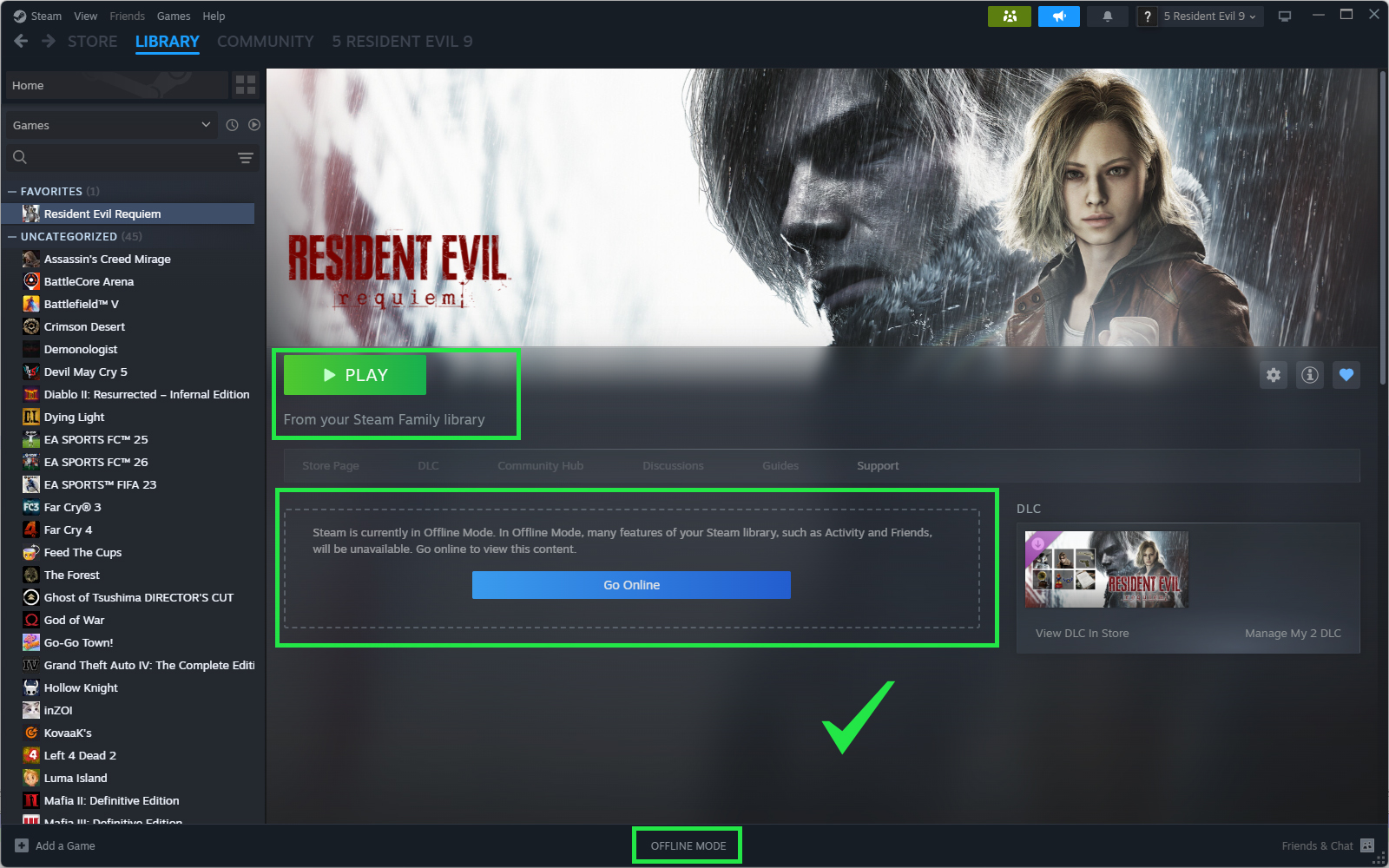
✅Enjoy your game! Make sure you have disabled Cloud Save too!. Make sure you are in offline mode everytime before you launch the game.
If Purchase Icon/Shared Library Locked/Library In Use/In Use by Family Member
Solution 1 (Recommend): Bypass Family Sharing Restriction with User32.dll
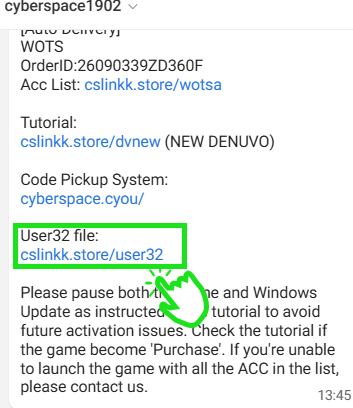 Download the user32.dll file from the link we provided/clicking this link.
➜
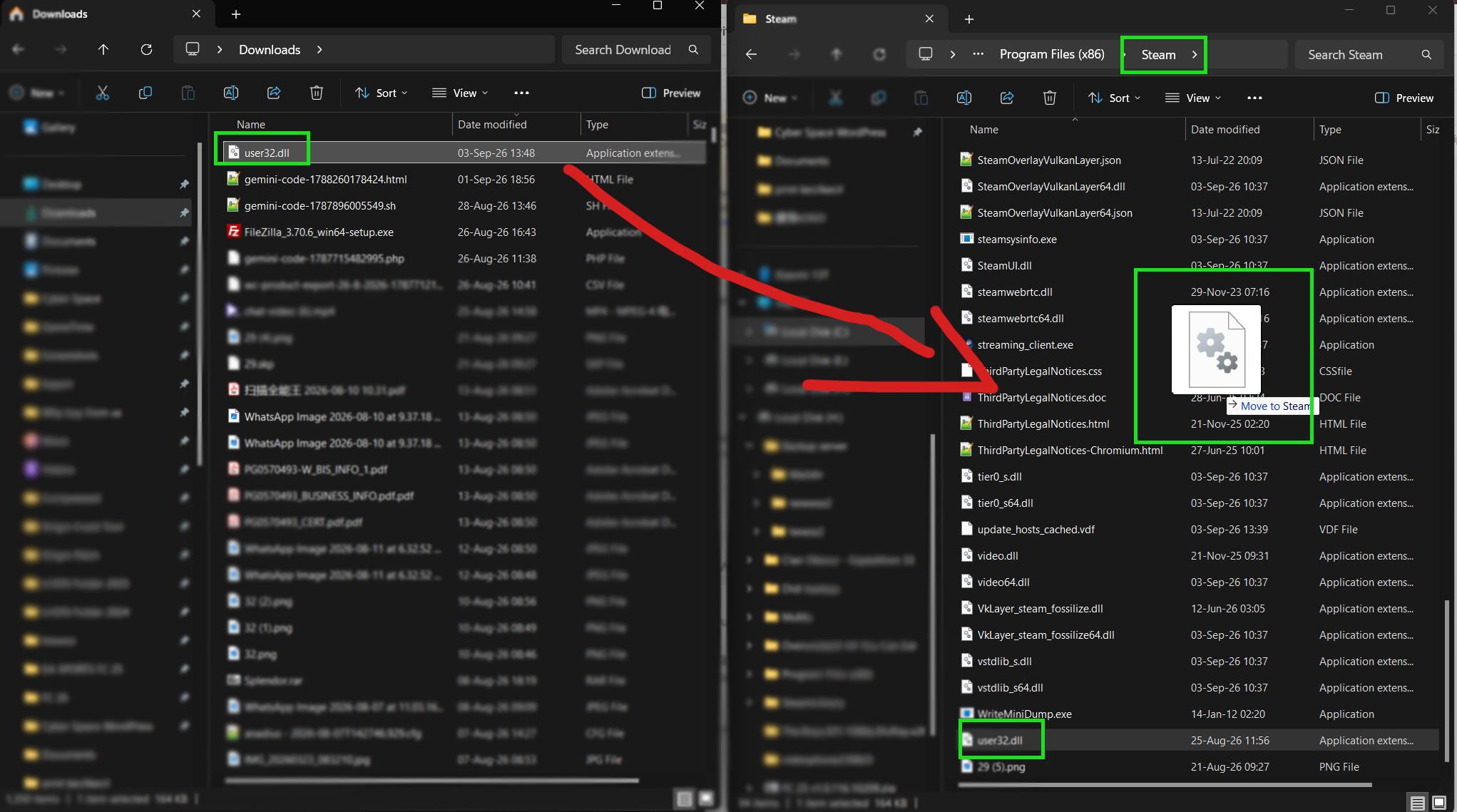 Copy/Cut/Paste user32.dll into your Steam Client folder.
➜
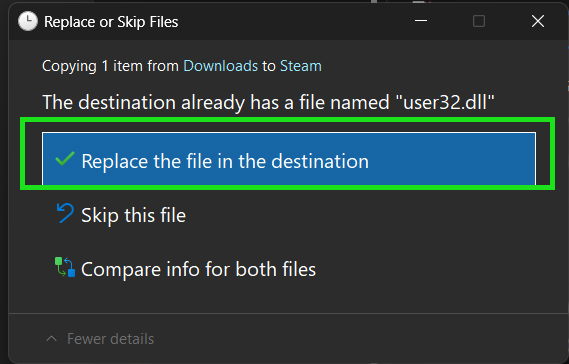 Replace if needed.
➜
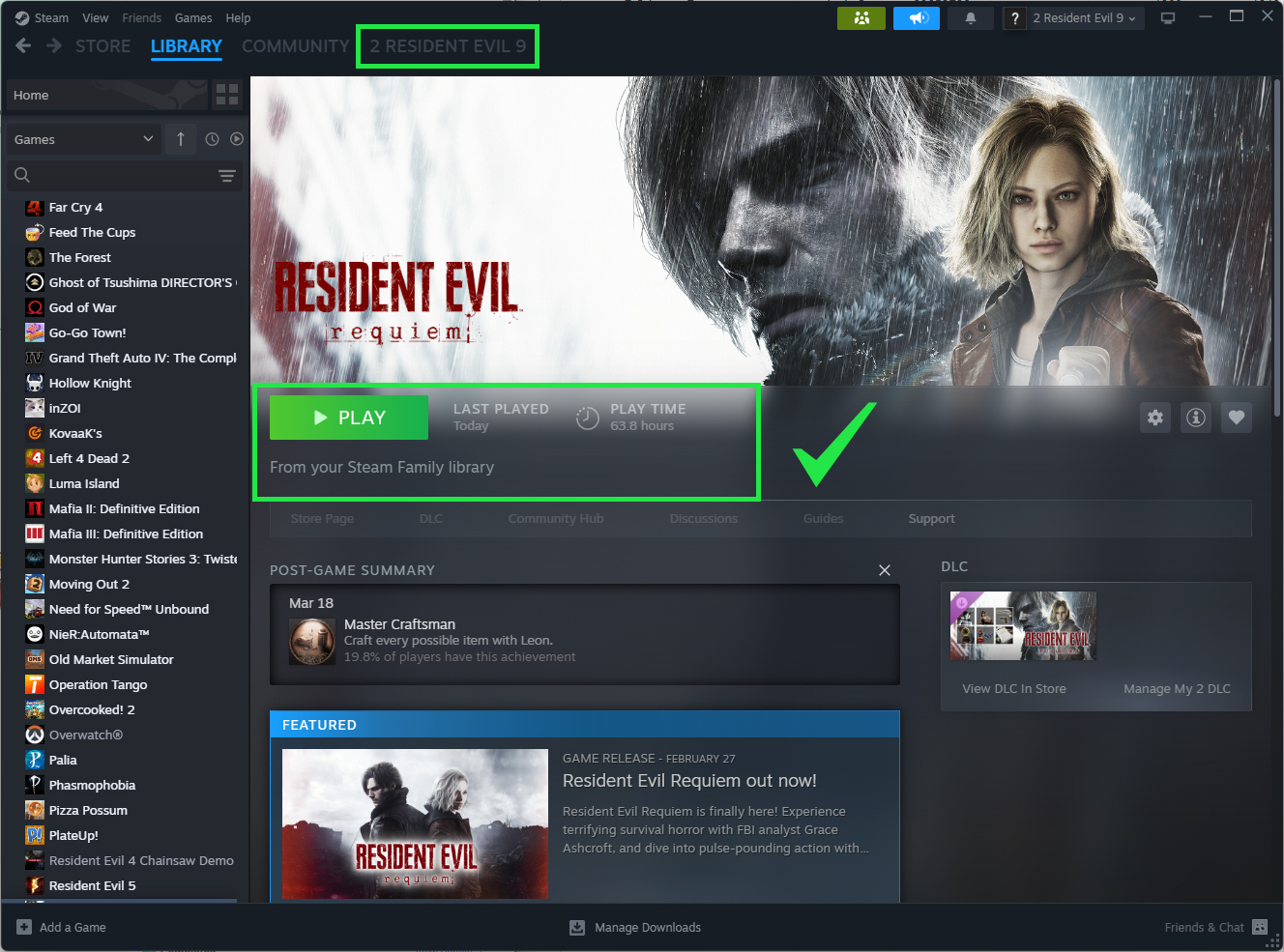 ✅Restart your Steam and Done!
Scenario 1: Solution for First Activation User
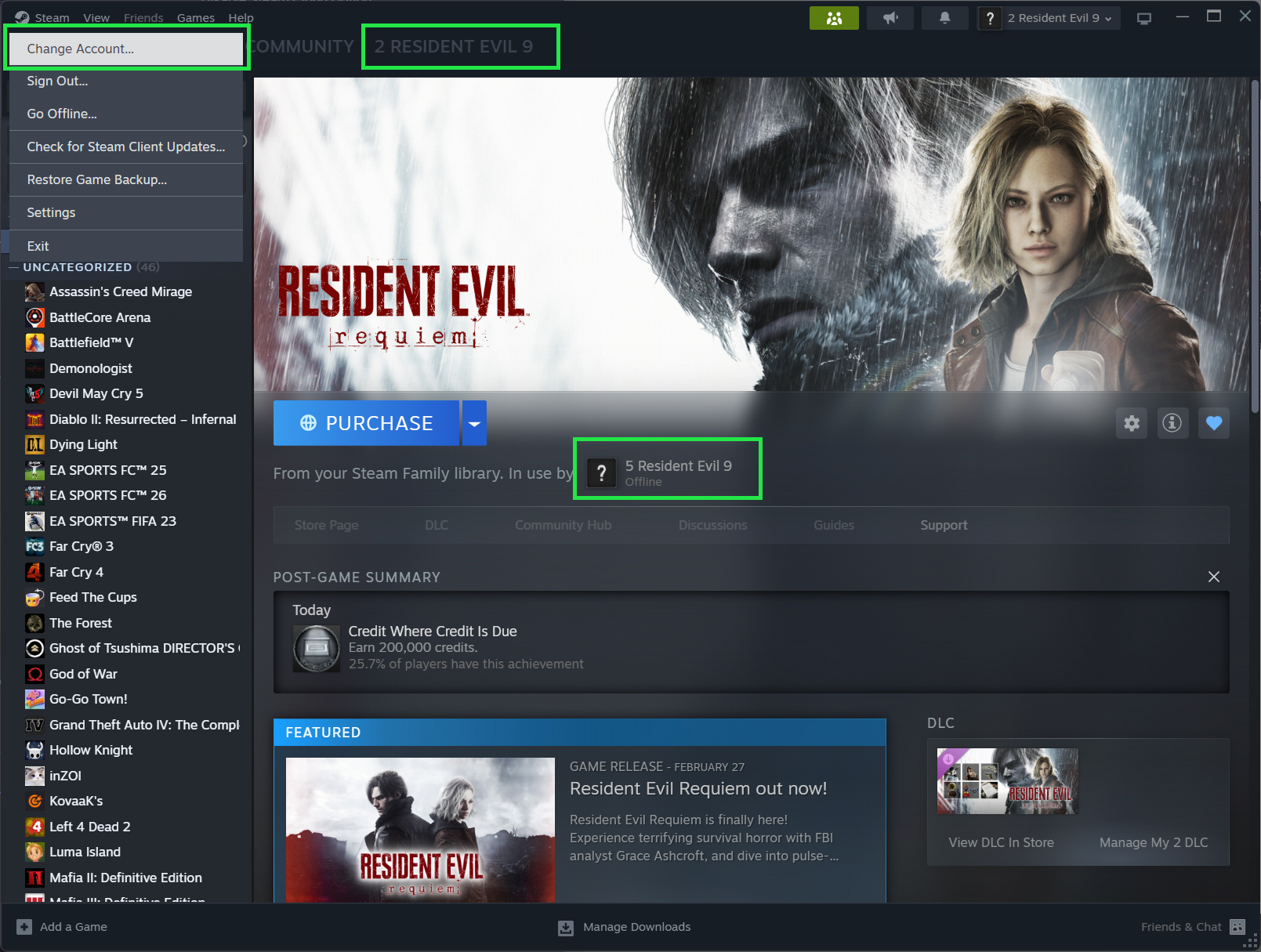 Remember the In Using and activate account. (Example: 5 RE 9 and 2 RE 9). Then click "Change Account...".
➜
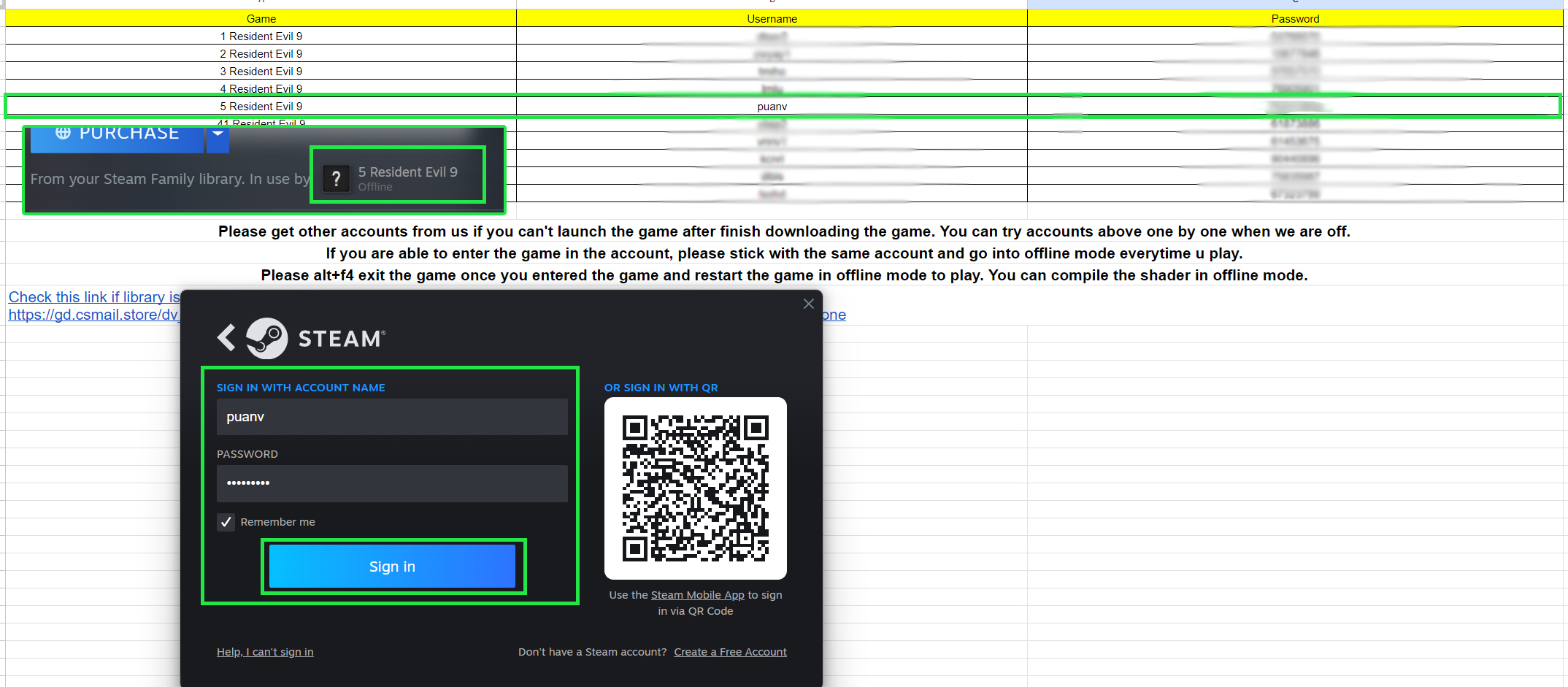 Login to the account that is in using.
➜
Click "Play". Make sure you have clicked the arrow right on the button and choose "This device".
➜
 Follow "Scenario A" if you are able to launch the game.)
OR
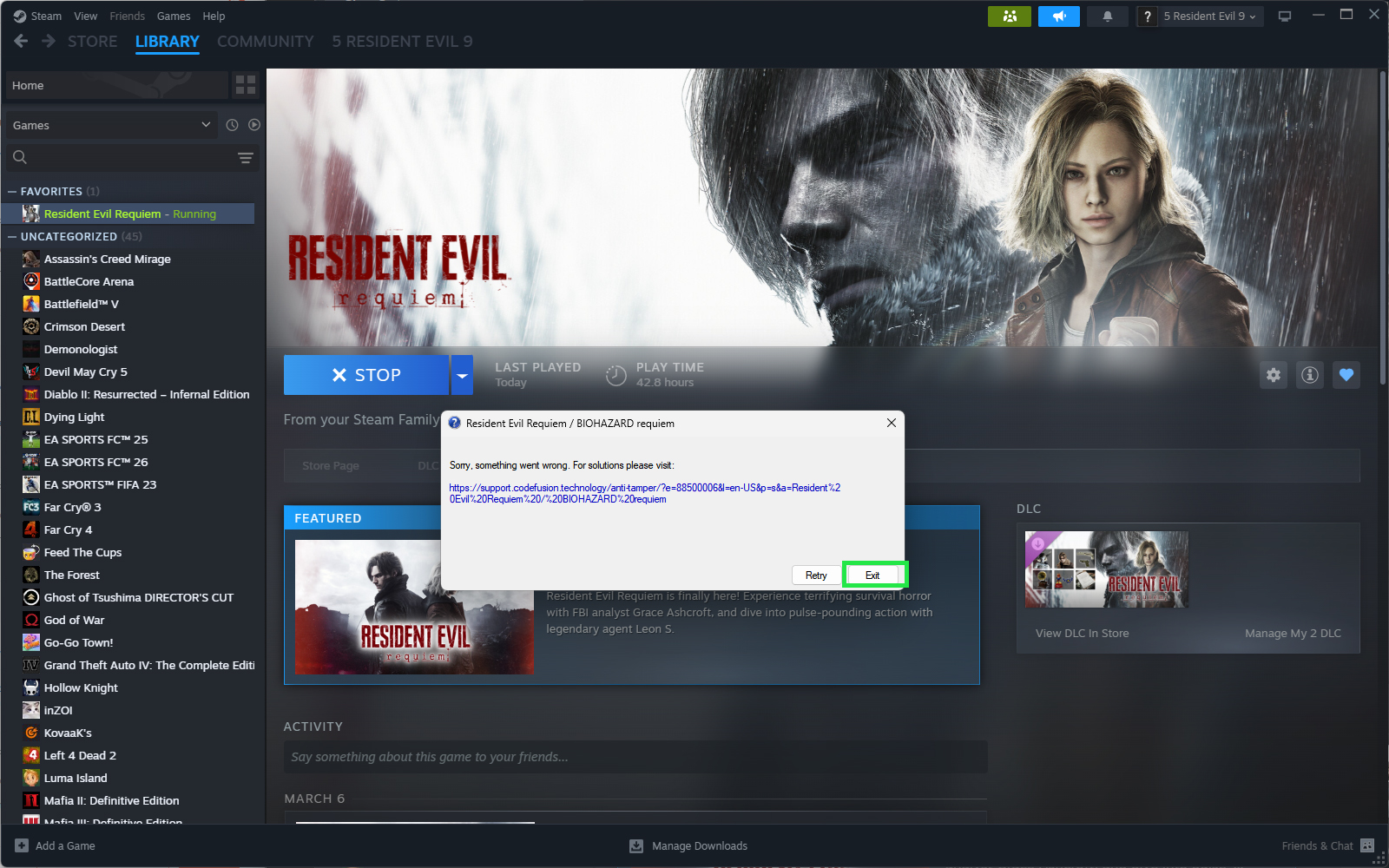 Follow "Scenario B" if it appear "Something went wrong" error.
Exit the game by alt + f4.
➜
Your activation is done! Go into offline mode.
➜
✅Enjoy your game! Make sure you have disabled Cloud Save too!.
Click Exit.
➜
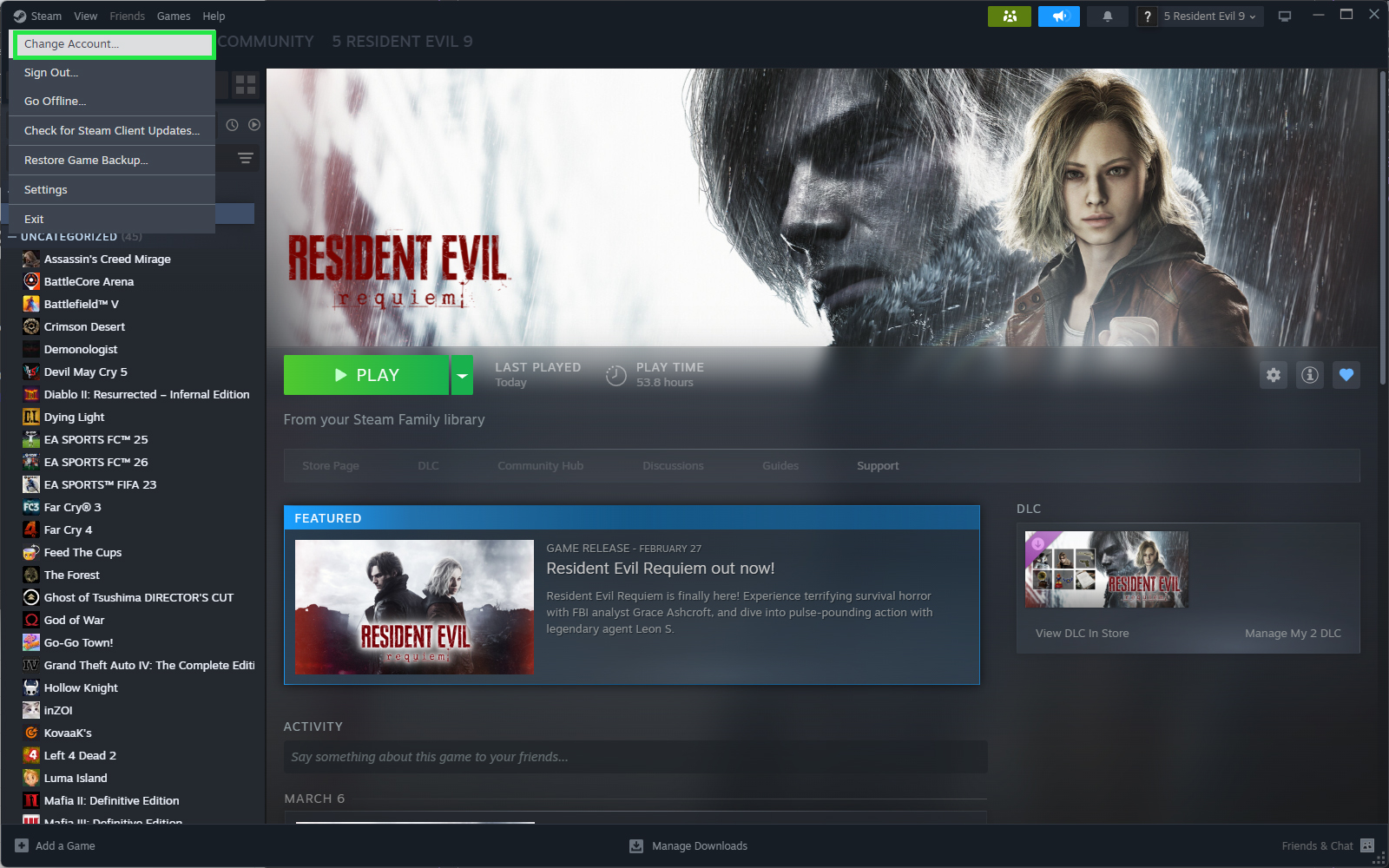 Back to the account you used to activate. (Example: 2 RE 9)
➜
✅Done! If it show the 'Something went wrong' error again, please try the other accounts or contact us.
Scenario 2: Solution for Reactivate User
Remember the In Using account. (Example: 5 Resident Evil 9). Then click "Change Account...".
➜
Login to the account that is in using.
➜
Click "Play". Make sure you have clicked the arrow right on the button and choose "This device".
➜
Click Exit. (Ref1)
OR
Exit the game by alt + f4. (Ref2)
➜
Back to the account you used to play. (Example: 2 RE 9)
➜
✅Done!
Scenario 3: Solution for Activated Offline User
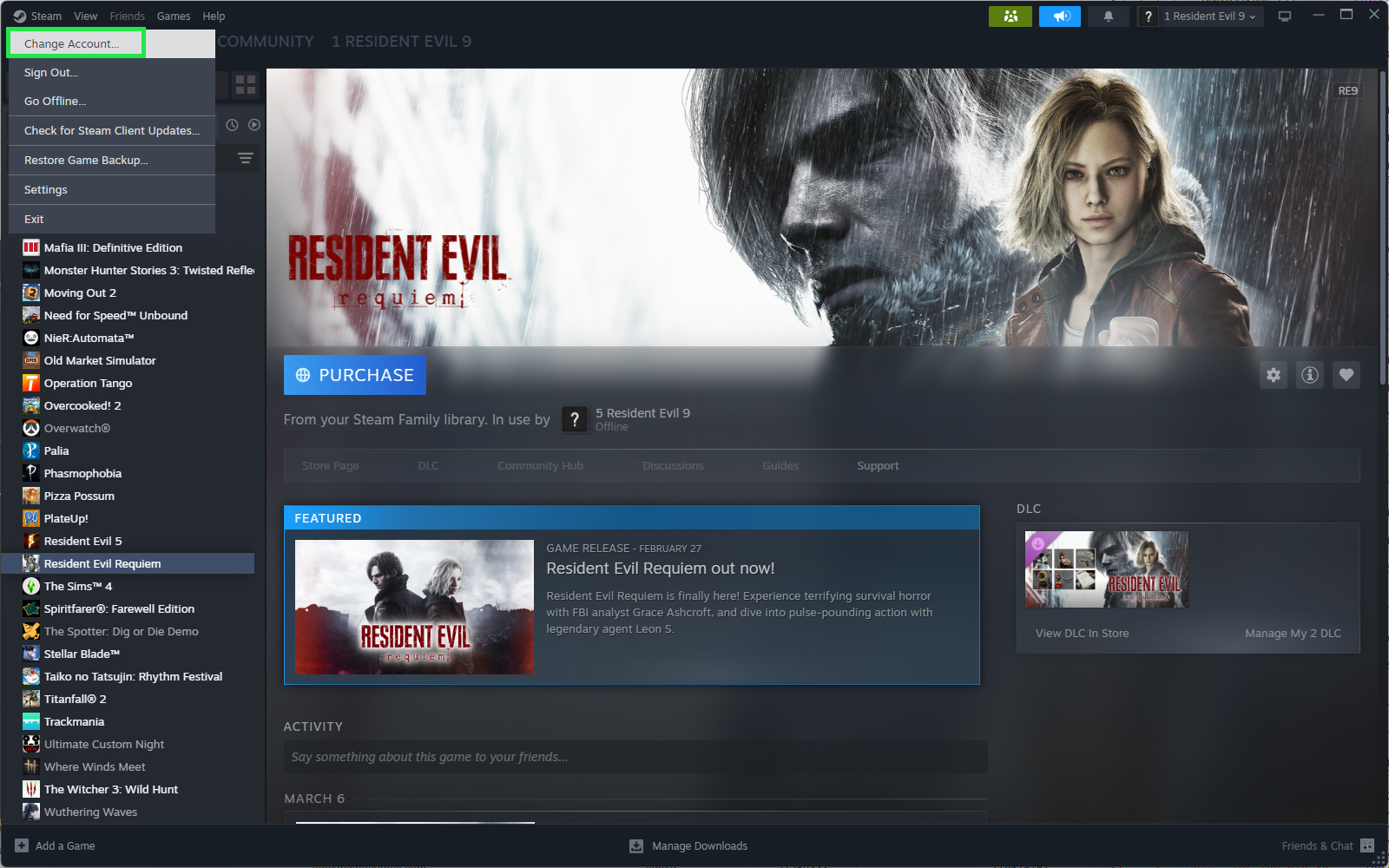 Click on "Steam" on top-left corner then click "Change Account..."
➜
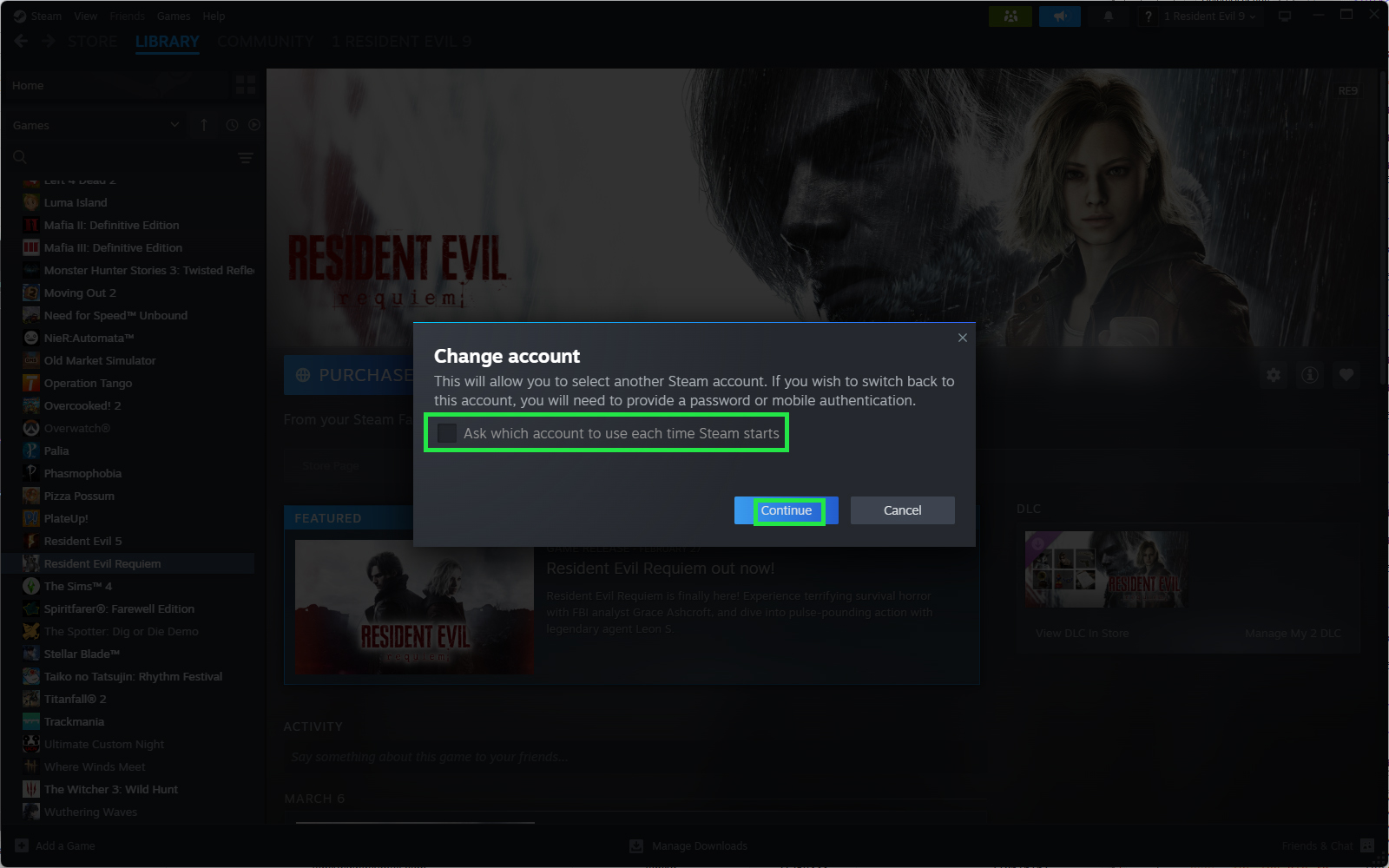 Uncheck the box in the image, then click "Continue".
➜
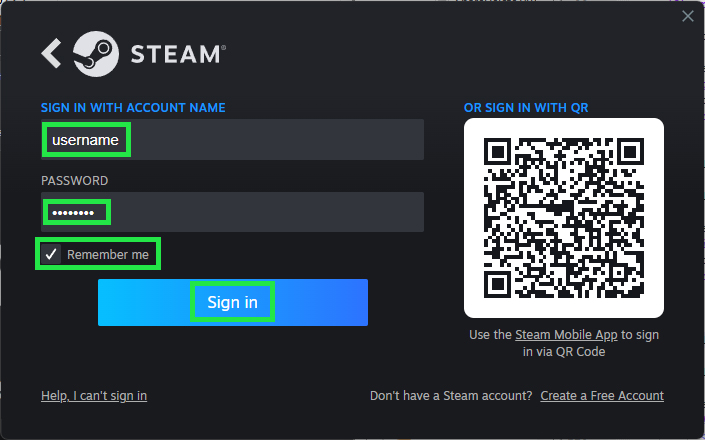 Tick the box/option "Remember Me" then login the account you used to play again.
➜
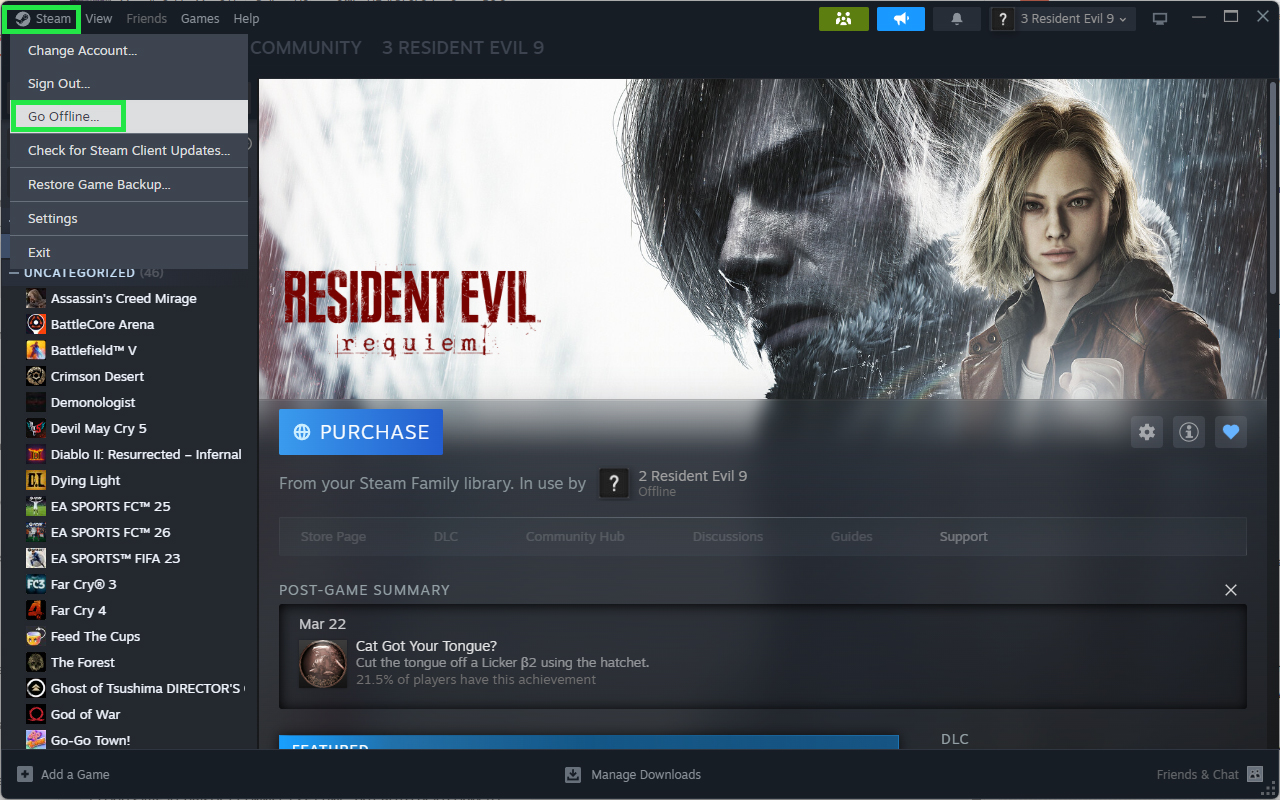 Open "Steam" on top-left corner then click "Go Offline...".
➜
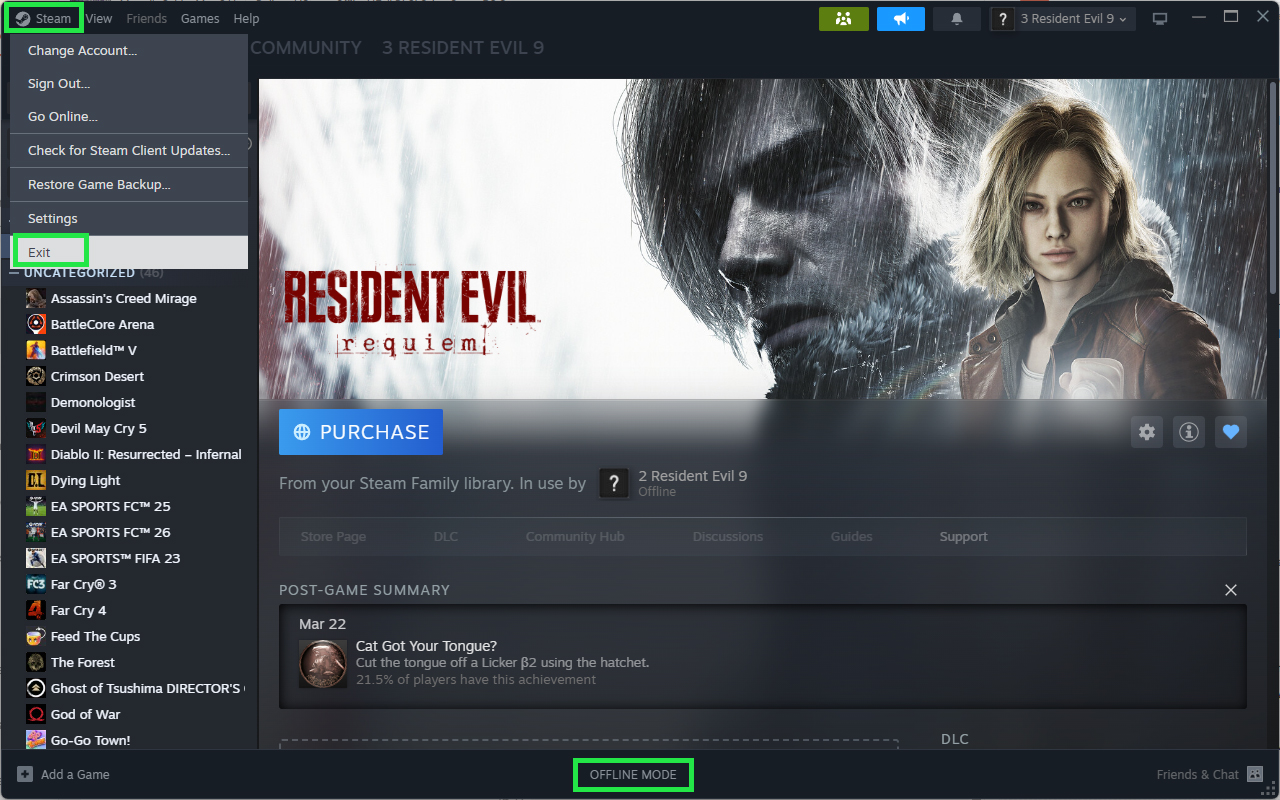 Once you enter offline mode, Open "Steam" on top-left corner again then click "Exit".
➜
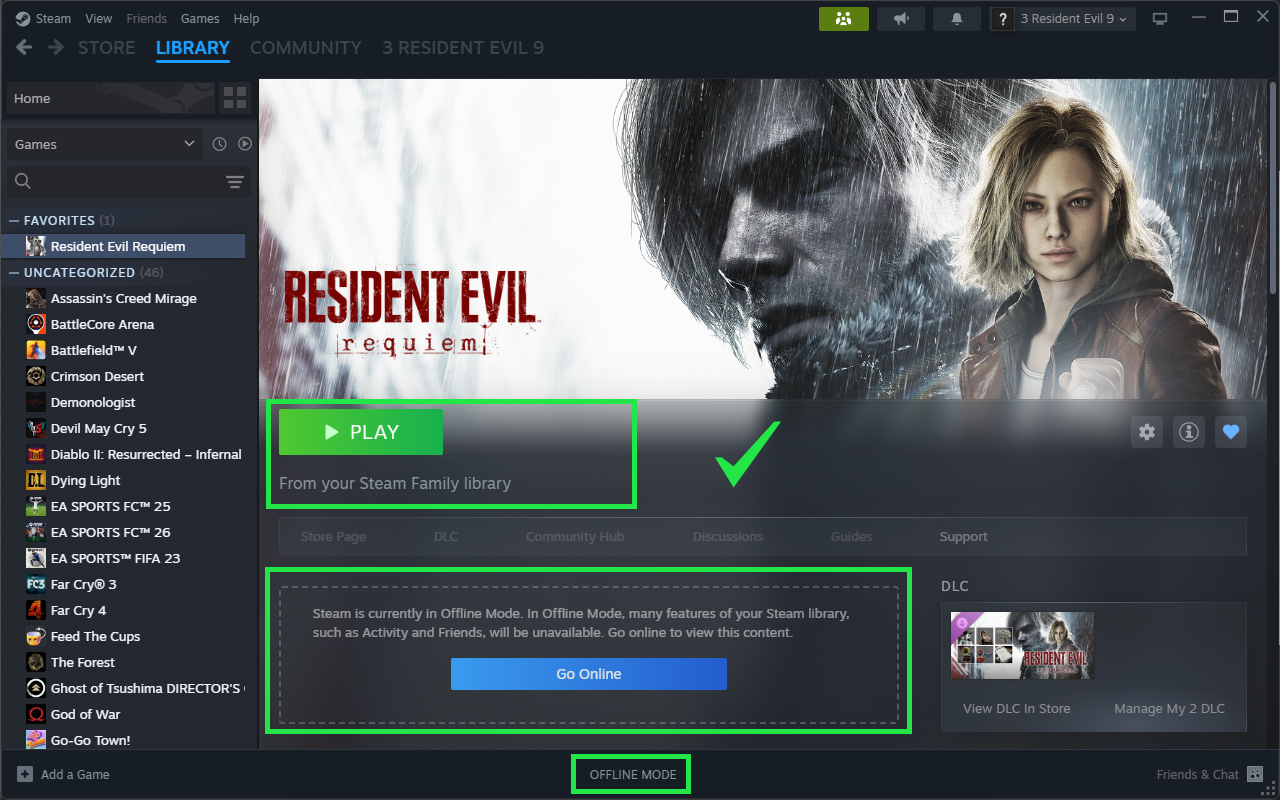 Open Steam again then Steam will login into the account in offline mode automatically. Then you are good to go.
Things to Check Everytime Before You Play After Setup:
Go to Offline mode
Go to Offline mode
Click on "Steam" option at top-left corner. Then click "Go Offline..."
➜
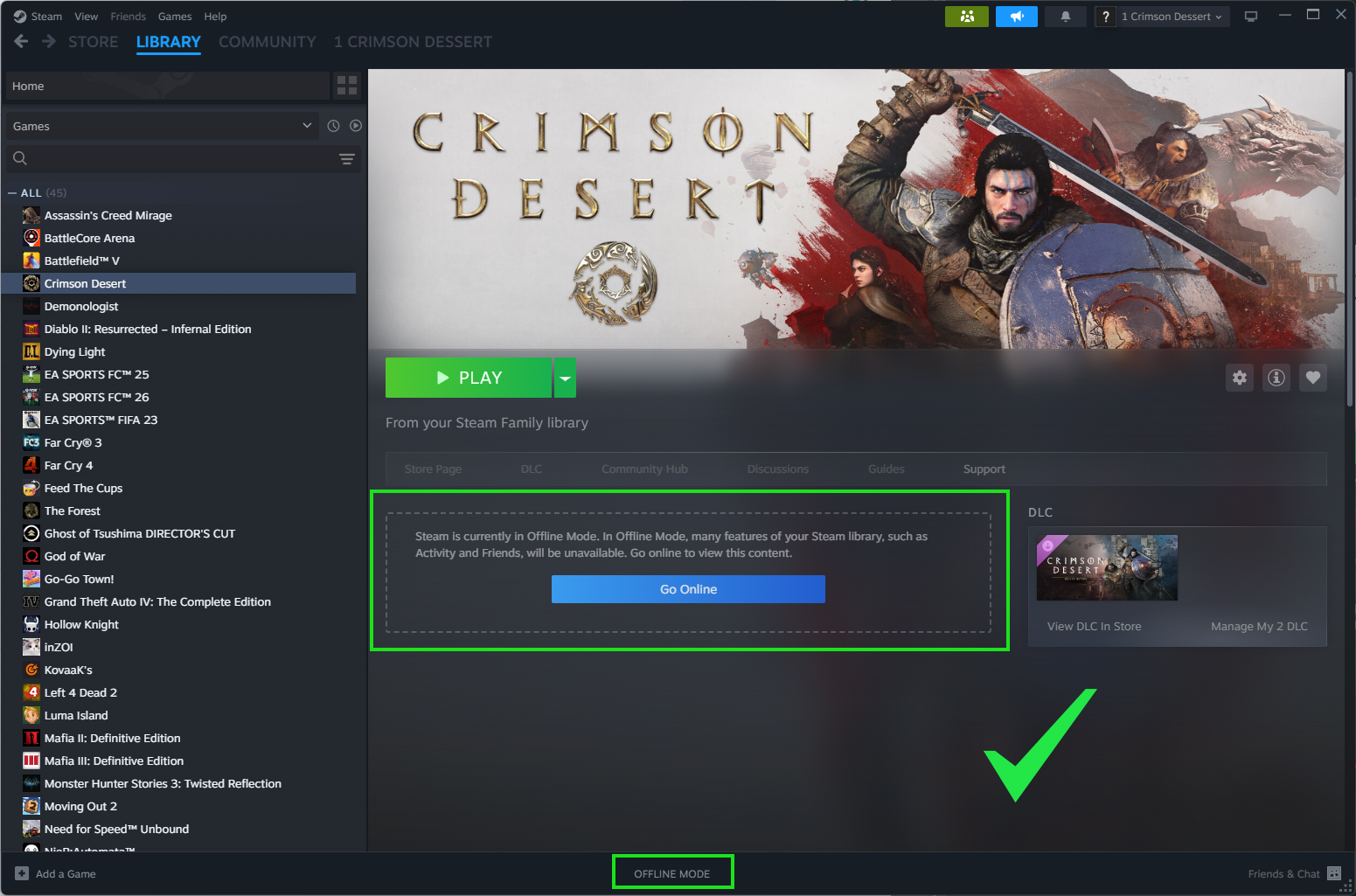
✅This means you have successfully entered offline mode.
➜
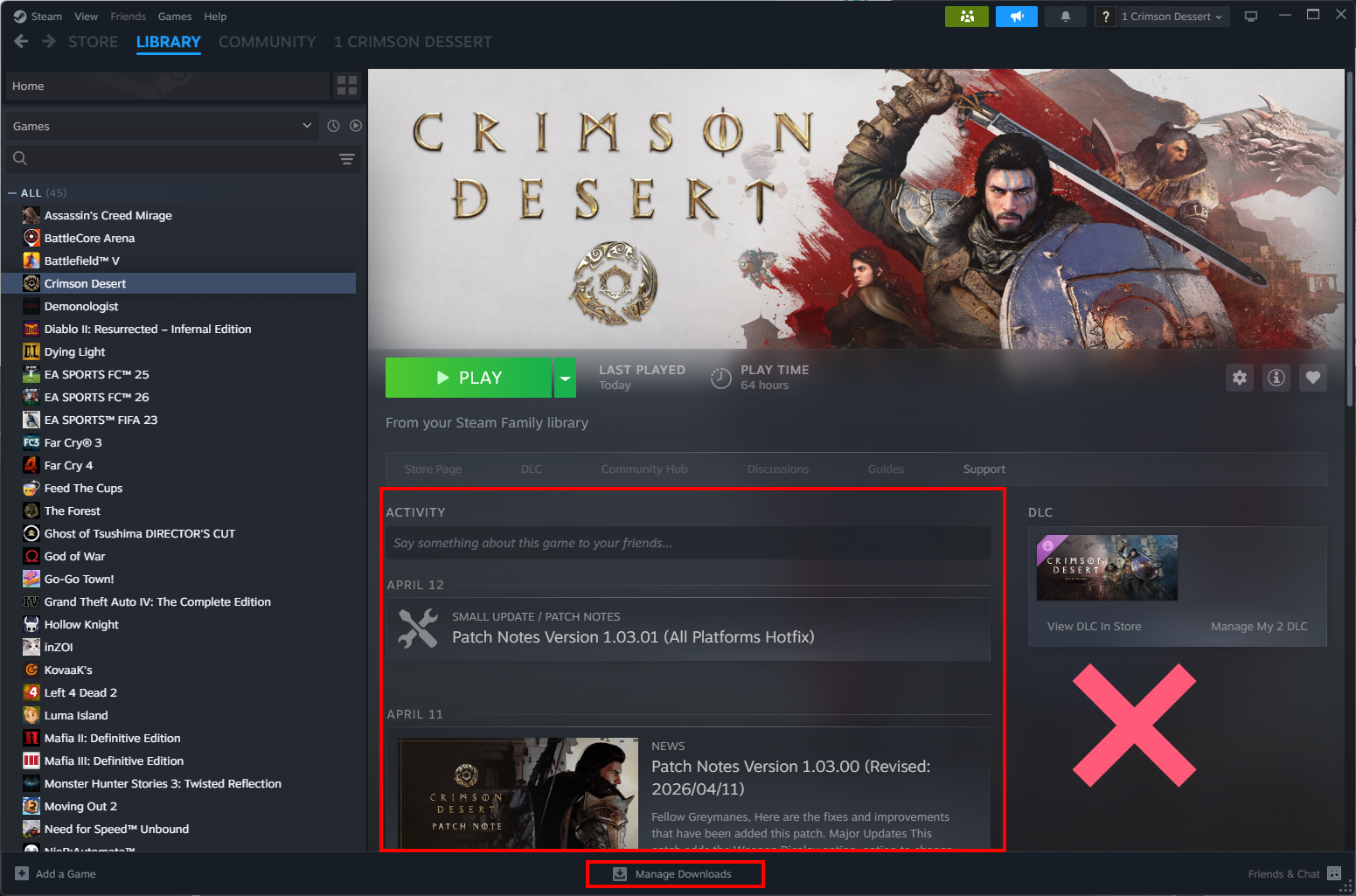
❌This means you are still in online mode. Please repeat the steps again and make sure game is not opening while you changing to offline mode.
Disable Cloud Save
Disable Steam Cloud Option
Open Setting on Steam.
➜
Disable "Enable Steam Cloud" option in Cloud section.
❌ This means that the cloud status has not yet been turned off. Please repeat the steps again.
✅ This means the cloud status has been successfully disabled.
Common Problems Solution:
If Purchase Icon/Shared Library Locked/Library In Use/In Use by Family Member
Solution 1 (Recommend): Bypass Family Sharing Restriction with User32.dll
Download the user32.dll file from the link we provided/clicking this link.
➜
Copy/Cut/Paste user32.dll into your Steam Client folder.
➜
Replace if needed.
➜
✅Restart your Steam and Done!
Scenario 1: Solution for First Activation User
Remember the In Using and activate account. (Example: 5 RE 9 and 2 RE 9). Then click "Change Account...".
➜
Login to the account that is in using.
➜
Click "Play". Make sure you have clicked the arrow right on the button and choose "This device".
➜
Follow "Scenario A" if you are able to launch the game.)
OR
Follow "Scenario B" if it appear "Something went wrong" error.
Exit the game by alt + f4.
➜
Your activation is done! Go into offline mode.
➜
✅Enjoy your game! Make sure you have disabled Cloud Save too!.
Click Exit.
➜
Back to the account you used to activate. (Example: 2 RE 9)
➜
✅Done! If it show the 'Something went wrong' error again, please try the other accounts or contact us.
Scenario 2: Solution for Reactivate User
Remember the In Using account. (Example: 5 Resident Evil 9). Then click "Change Account...".
➜
Login to the account that is in using.
➜
Click "Play". Make sure you have clicked the arrow right on the button and choose "This device".
➜
Click Exit. (Ref1)
OR
Exit the game by alt + f4. (Ref2)
➜
Back to the account you used to play. (Example: 2 RE 9)
➜
✅Done!
Scenario 3: Solution for Activated Offline User
Click on "Steam" on top-left corner then click "Change Account..."
➜
Uncheck the box in the image, then click "Continue".
➜
Tick the box/option "Remember Me" then login the account you used to play again.
➜
Open "Steam" on top-left corner then click "Go Offline...".
➜
Once you enter offline mode, Open "Steam" on top-left corner again then click "Exit".
➜
Open Steam again then Steam will login into the account in offline mode automatically. Then you are good to go.